O que é uma publicação da comunidade?
Uma publicação na Comunidade é uma mensagem compartilhada no espaço interno da Comunidade da sua empresa. É uma maneira simples e eficaz de compartilhar atualizações, fazer perguntas ou iniciar discussões com seus colegas.
As publicações da comunidade são frequentemente usadas por profissionais de RH, gerentes ou líderes de equipe para:
- Compartilhe notícias da empresa ou anúncios de eventos.
- Promover iniciativas internas (como programas de bem-estar ou treinamentos)
- Peça feedback ou ideias.
- Incentive a interação e o engajamento dos funcionários.
Essas publicações ajudam a criar um ambiente de trabalho aberto e colaborativo, onde todos se mantêm informados e conectados.
Como criar uma publicação
Para criar uma publicação através do Painel de Controle:
- Na sua barra lateral, clique em Painel de Controle
- Deslize para baixo até "Todas as comunidades" ou escolha uma comunidade diferente.
- Clique em Criar publicação

No momento, as publicações criadas no Factorial Communities não podem ser sincronizadas com nenhuma plataforma de mídia social .
Todas as publicações e interações permanecem dentro Factorial , mantendo um ambiente privado e seguro para sua equipe.
Como preencher as informações para criar uma publicação
- Após clicar em Criar publicação, uma nova página será exibida com os seguintes elementos:
- Adicione uma imagem (PNG, JPEG, JPG, GIF, BMP, TIF, SVG), tamanho: 1220x686px (até 12MB para vídeos)
- Insira um título
- Se a publicação for um evento , marque a opção e insira a data, a hora e o local.
- Adicione uma descrição: destaque os conceitos importantes e torne a publicação mais legível usando palavras em negrito, itálico e sublinhado.
- Adicionando links externos às suas postagens. Você também pode incluir links para sites externos — por exemplo, um vídeo do YouTube, uma postagem de blog da empresa ou qualquer recurso online relevante.
- Para fazer isso, basta colar o link diretamente na sua publicação.

Agora você também pode anexar arquivos à publicação. Clique no ícone 📎 e escolha seus arquivos (máximo de 200 MB no total).

- Para fazer isso, basta colar o link diretamente na sua publicação.
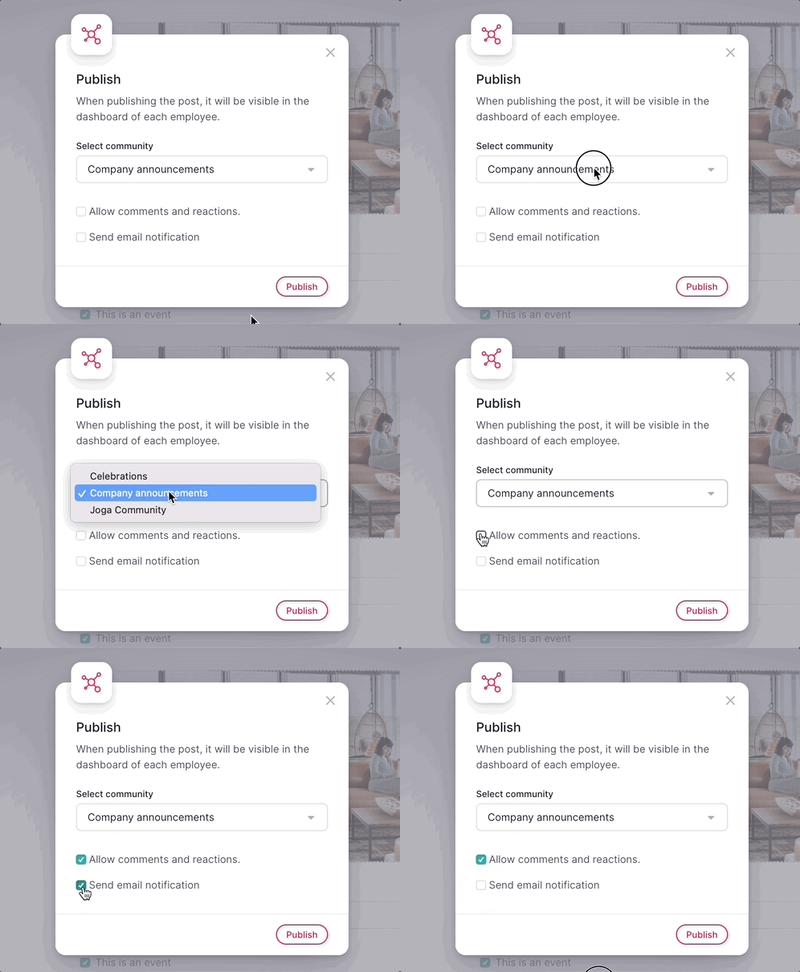
- Clique em Continuar, localizado no canto superior direito.
- Selecione a comunidade
- Sinalizar ou não as opções
- Clique em Publicar
Ter em mente:
Ao publicar o evento, ele ficará visível no calendário da empresa e no painel de controle de cada funcionário. Você também pode:
- Enviar notificação por e-mail
- Permitir comentários e reações
Os administradores podem:
- Exclua publicações automáticas, como aniversários.
- Poder ver quem visualizou o evento.
- Administradores e o usuário que criou uma postagem verão o botão de reticências no canto superior direito ao clicar em (...)
- Esse botão permite: editar publicações, desativar comentários e reações e excluir publicações.

Funcionários e outros perfis poderão ver quantas pessoas assistiram ao evento.