Bevor Sie mit der Synchronisierung mit Ihrem Kalender beginnen
Bevor Sie Factorial mit Ihrer Kalender-App verbinden, beachten Sie bitte Folgendes:
- Einseitige Synchronisierung ( Factorial → Kalender)
Ereignisse in Factorial werden in Ihrem Kalender angezeigt, Änderungen in Ihrem Kalender werden jedoch nicht Factorial aktualisiert. - Nicht in Echtzeit
Die Synchronisierung erfolgt nicht sofort; es kann einige Zeit dauern, bis Ereignisse in Ihrem Kalender erscheinen. - Kein Trennknopf in Factorial
Nach der Einrichtung kann die Synchronisierung mit Factorial nicht mehr getrennt werden. Sie muss über Ihre Kalender-App verwaltet werden. - Kalender-Feed-Typ:
Hierbei wird ein Abonnement-Feed (ICS) verwendet, der Ihren Kalender automatisch mit Factorial Ereignissen entsprechend dem Aktualisierungsplan Ihrer Kalender-App aktualisiert. - Keine selektive Synchronisation
Sie können nicht auswählen, welche spezifischen Informationen synchronisiert werden. Die Synchronisierung erfolgt nach dem Prinzip „alles oder nichts“ – entweder werden alle verfügbaren Daten synchronisiert oder keine.
Was wird synchronisiert:
- Urlaubszeiten und Abwesenheiten wurden in Factorial erfasst.
- Firmenweite Veranstaltungen oder Feiertage
Was NICHT synchronisiert ist:
- Persönliche Ereignisse, die Sie in Factorial erstellen
- Kommentare, Anhänge oder zusätzliche Details zu Factorial -Veranstaltungen
So verbinden Sie Ihre Kalender
Wenn wir den Google Kalender mit Factorial synchronisieren, werden die Informationen von Factorial in den Google Kalender übertragen. Das bedeutet, dass alle im Kalender angezeigten Ereignisse, einschließlich Geburtstage, Abwesenheiten und Feierlichkeiten, kopiert werden.
- Gehen Sie in Ihrer Seitenleiste zum Kalender.
- Klicken Sie auf „Kalender-Feed“ in der oberen rechten Ecke.
- Wählen Sie den Kalender aus, den Sie synchronisieren möchten.
- Klicken Sie auf „URL kopieren“ .

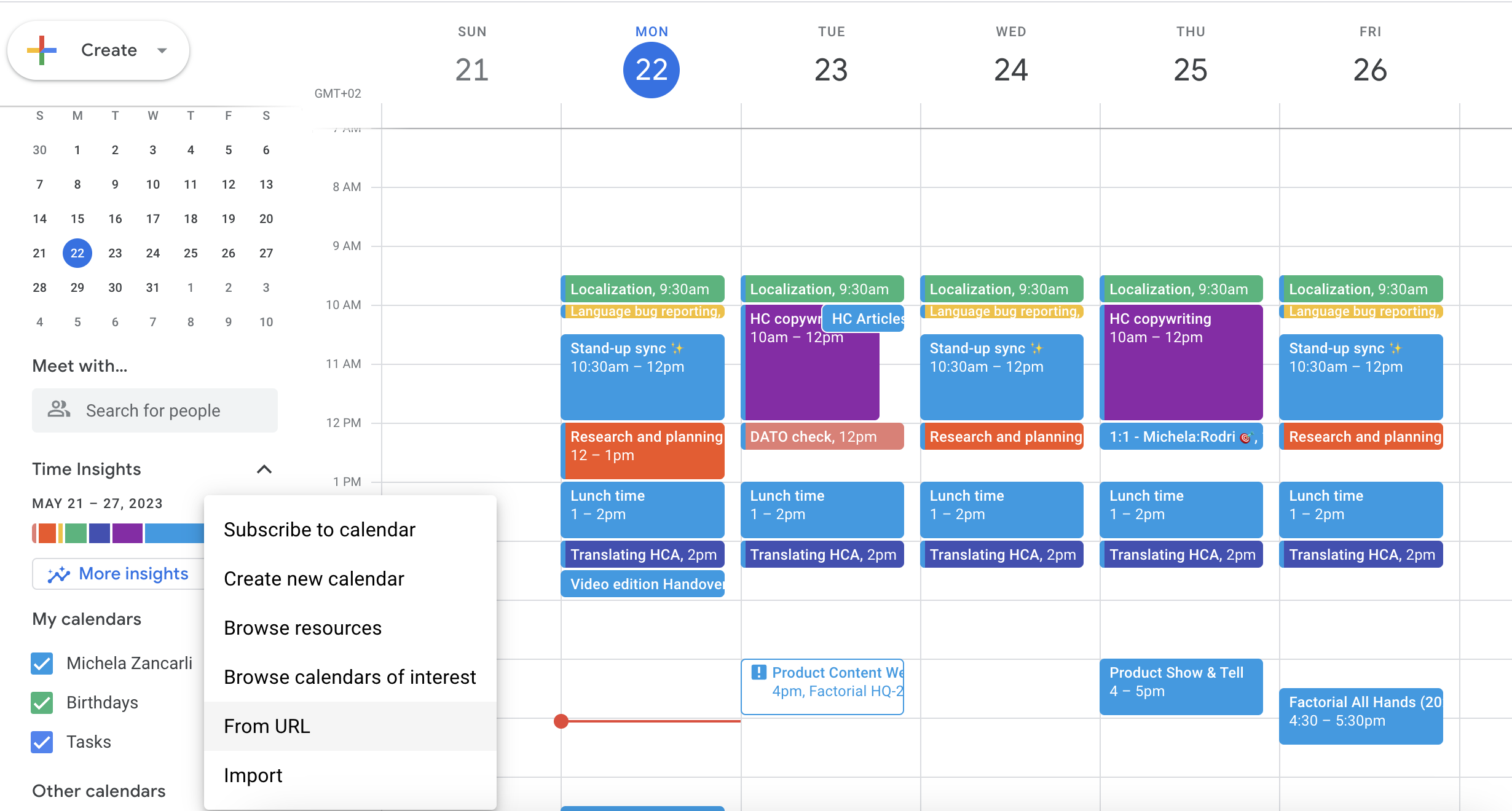
Wenn Sie Google Kalender verwenden
- Öffnen Sie auf Ihrem Computer den Google Kalender.
- Klicken Sie links neben „Andere Kalender“ auf „Weitere Kalender hinzufügen“ .
- Von URL auswählen
- Fügen Sie die URL Factorial ein.
- Klicken Sie auf „Kalender hinzufügen“.
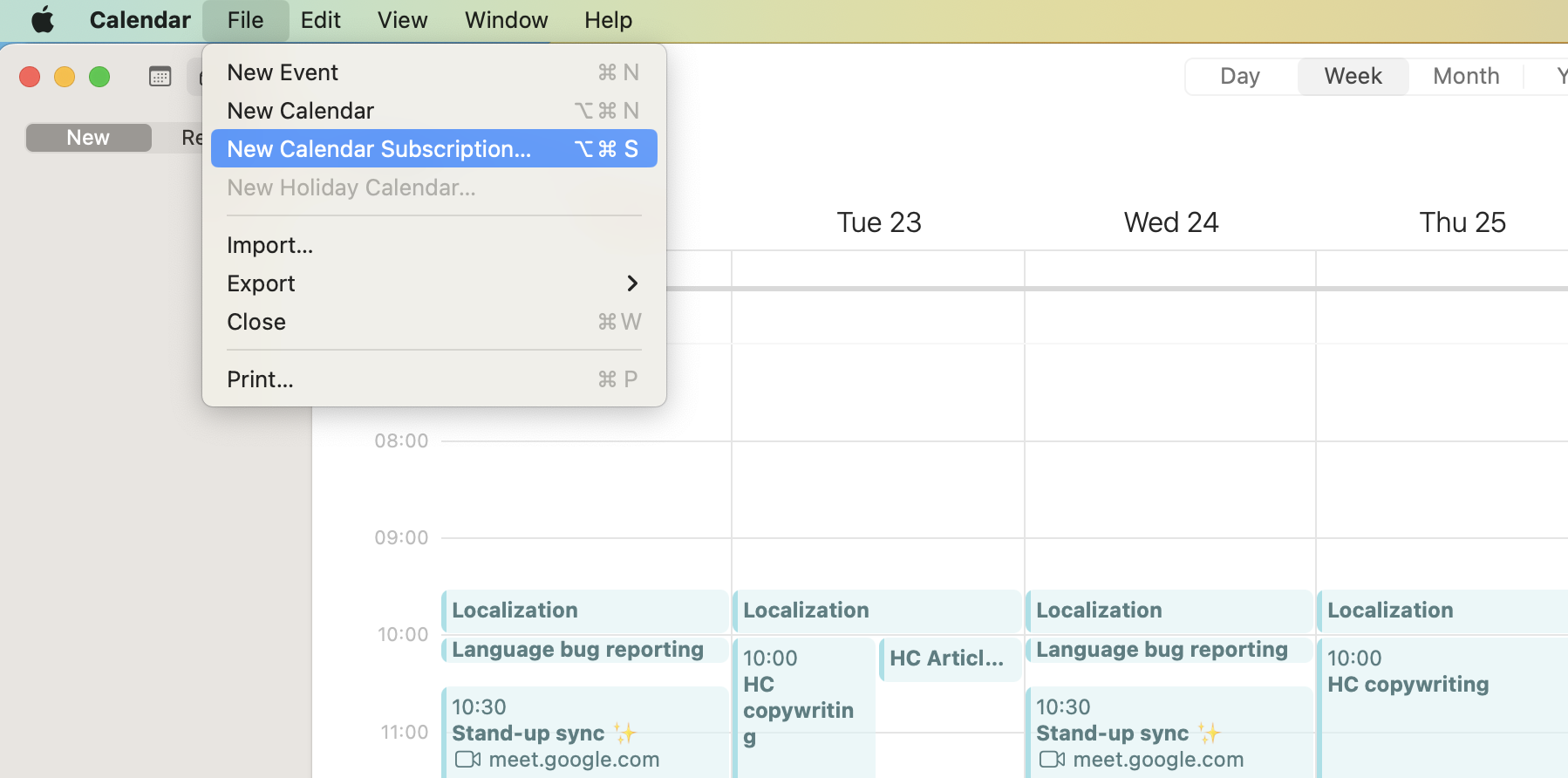
Wenn Sie iCalendar verwenden
- Öffnen Sie iCalendar auf Ihrem Computer.
- Klicken Sie auf Datei.
- Wählen Sie „Neues Kalenderabonnement“ aus.
- Fügen Sie die URL Factorial ein.
- Klicken Sie auf Abonnieren
Wenn Sie den Outlook-Kalender verwenden:
- Klicken Sie in Factorial auf „Integration konfigurieren“ und kopieren Sie die Kalender-URL.
(Optional) Um nach Team zu filtern, kopieren Sie die URL direkt vom Kalendersymbol auf der rechten Seite des Kalenderabschnitts. - Outlook-Kalender öffnen.
- Gehen Sie zu Datei und wählen Sie Kontoeinstellungen > Kontoeinstellungen .
- Klicken Sie unter dem Reiter „Internetkalender“ auf „Neu“ .
- Fügen Sie die URL Factorial ein und klicken Sie auf Hinzufügen .
- Bestätigen Sie das Abonnement, indem Sie Ja auswählen.
Ihr Outlook-Kalender zeigt nun die Abwesenheiten von Personen, Firmenveranstaltungen und Feiertage an.
So entfernen oder beenden Sie die Synchronisierung
In Factorial gibt es keine Schaltfläche zum Trennen von Kalender-Feeds. Um die Synchronisierung zu beenden, müssen Sie den Factorial -Feed in Ihrer Kalender-App entfernen oder abbestellen.
- Google Kalender :
- Zu anderen Kalendern
- Öffnen Sie die Einstellungen für den Factorial .
- Wählen Sie „Entfernen “ oder „Abmelden“.
- Apple Kalender (iCal) :
- Klicken Sie in der Seitenleiste mit der rechten Maustaste auf den abonnierten Kalender.
- Wählen Sie „Abmelden“ .
- Ausblick :
- Wenn Sie es als Internetkalender-Abonnement hinzugefügt haben (über Kontoeinstellungen > Internetkalender ), entfernen Sie das Abonnement dort.
- Wenn Sie eine .ics-Datei importiert haben (über Datei > Öffnen und Exportieren > Importieren/Exportieren ), handelt es sich um einen einmaligen Import. Um Aktualisierungen zu verhindern, löschen Sie den importierten Kalender oder die importierten Ereignisse.
Wie oft wird es aktualisiert?
Factorial steuert das Aktualisierungsintervall nicht. iCal-Feeds werden gemäß dem Zeitplan Ihrer Kalender-App aktualisiert.
Aktualisierungen erfolgen nicht sofort und variieren je nach verwendetem Kalender (Google Kalender, Apple Kalender oder Outlook).
Praktischer Tipp: Um in Outlook stets die aktuellsten Informationen zu erhalten, verwenden Sie die Internetkalender-Abonnementmethode anstatt eine .ics-Datei zu importieren, da das Abonnement den Feed automatisch aktualisiert.