Before you start syncing with your calendar
Before connecting Factorial to your calendar app, keep these points in mind:
-
One-way sync (Factorial → calendar)
Events in Factorial will appear in your calendar, but changes made in your calendar will not update Factorial. -
Not real-time
The sync is not instantaneous; events may take some time to appear in your calendar. -
No disconnect button in Factorial
Once set up, you cannot disconnect the sync from Factorial. You must manage it from your calendar app. -
Calendar feed type:
This uses a subscription (ICS) feed, which automatically updates your calendar with Factorial events according to your calendar app’s refresh schedule. -
No selective synchronisation
You cannot choose which specific information is synchronised. The synchronization works on an “all or nothing” basis — either all available data is synced, or none of it is.
What is synced:
- Vacations and absences recorded in Factorial
- Company-wide events or holidays
What is NOT synced:
- Personal events you create in Factorial
- Comments, attachments, or additional details from Factorial events
How to connect your calendars
When we synchronise the Google Calendar with Factorial, the information is transferred from Factorial to the Google Calendar. This means that all events shown in the calendar, including birthdays, out of office and celebrations will be copied.
- On your sidebar, head to Calendar
- Click on Calendar Feed, located in the upper right corner
- Choose the calendar you want to sync
- Click on Copy URL

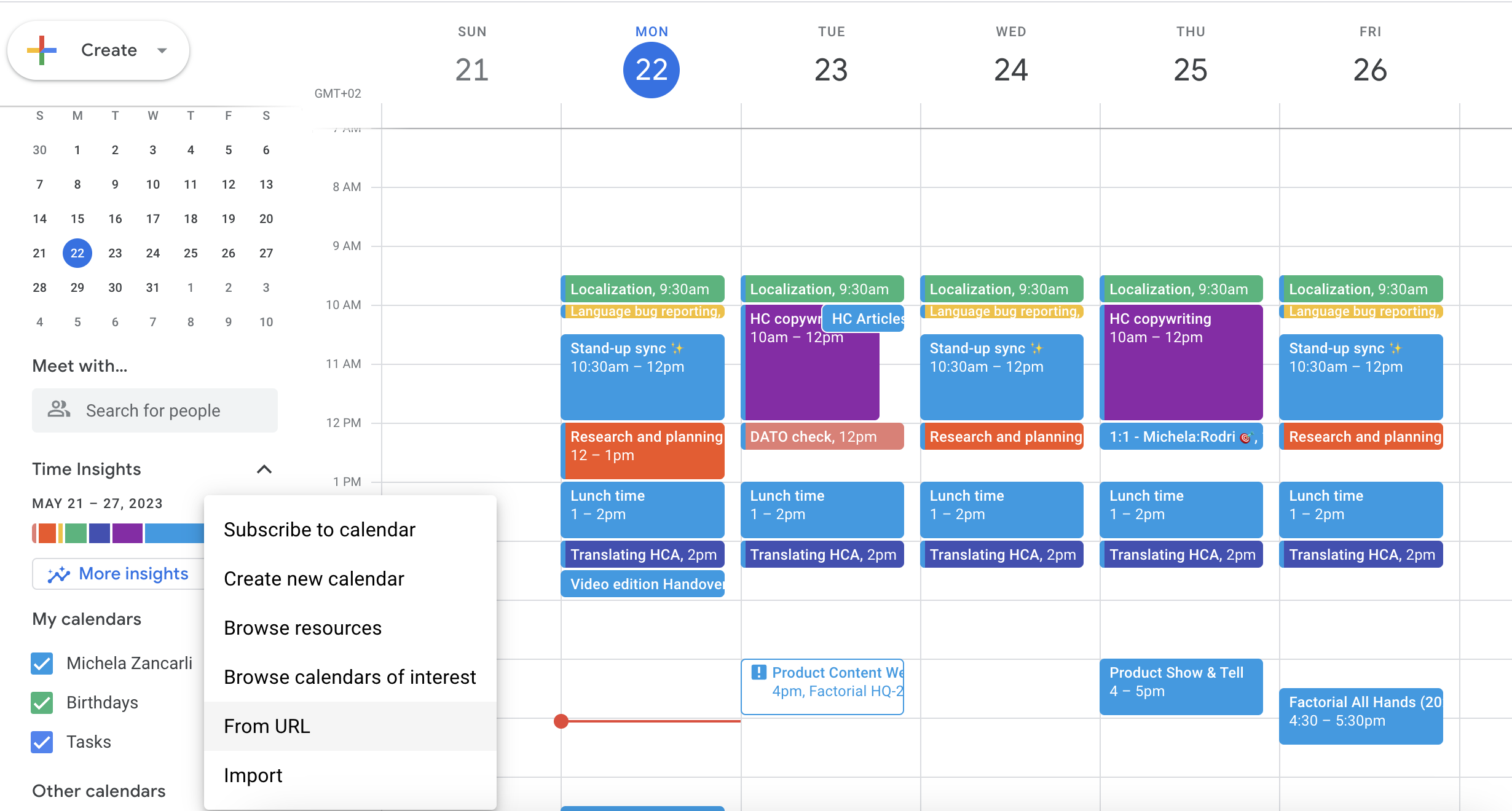
If you use Google Calendar
- On your computer, open Google Calendar
- On the left, next to Other calendars, click on Add other calendars
- Select From URL
- Paste the Factorial Calendar URL
- Click on Add calendar
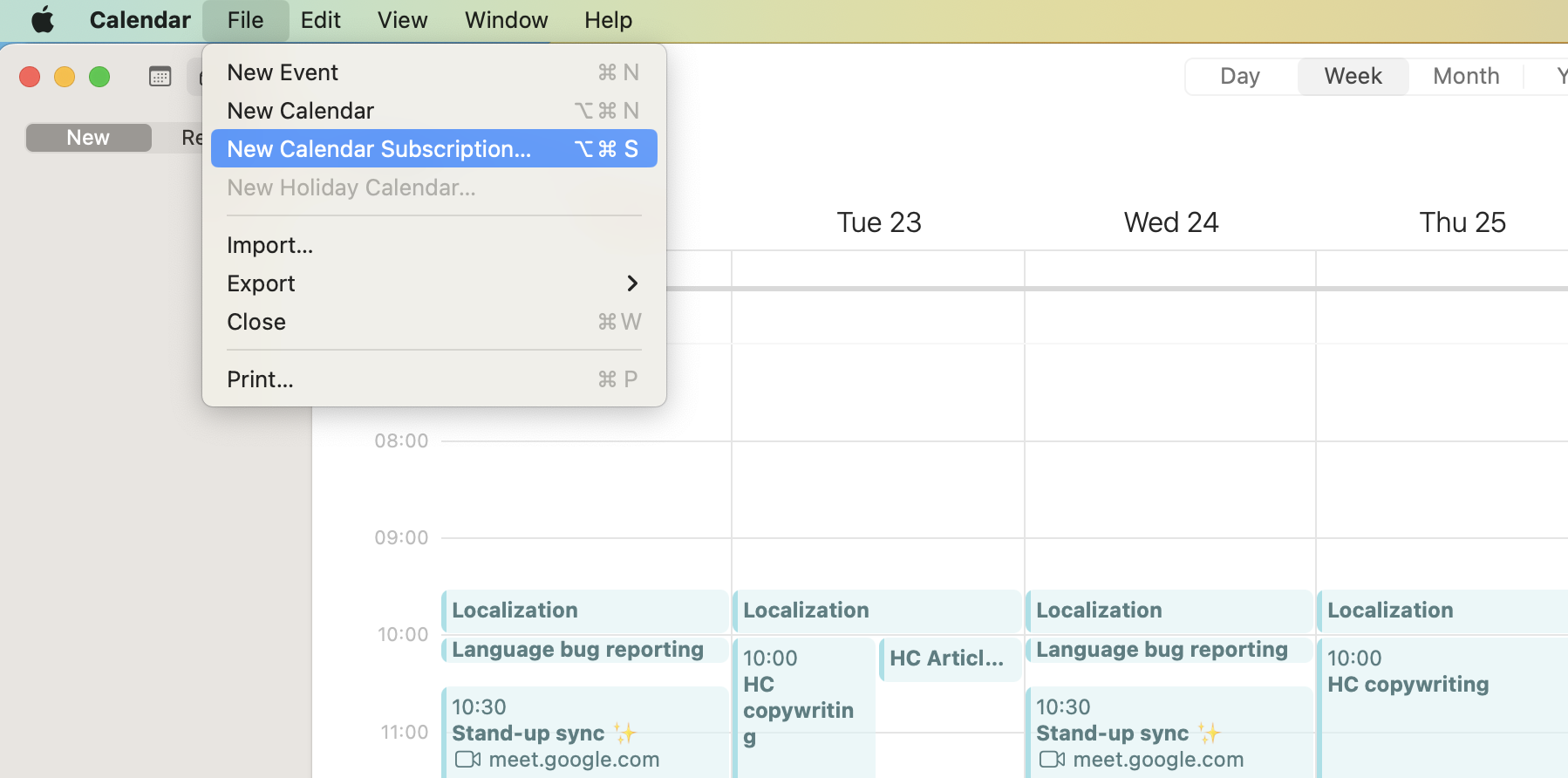
If you use iCalendar
- On your computer, open iCalendar
- Click on File
- Select New calendar subscription
- Paste the Factorial Calendar URL
- Click on Subscribe
If you use Outlook Calendar:
- Click on Configure Integration in Factorial and copy the calendar URL.
(Optional) To filter by team, copy the URL directly from the calendar icon on the right-hand side of the calendar section. - Open Outlook Calendar.
- Go to File and select Account Settings > Account Settings.
- Under the Internet Calendars tab, click New.
- Paste the Factorial Calendar URL and click Add.
- Confirm the subscription by selecting Yes.
Your Outlook Calendar will now display people’s absences, company events, and holidays.
How to remove or stop the sync
There is no “disconnect” button inside Factorial for calendar feeds. To stop syncing, you need to remove or unsubscribe from the Factorial feed in your calendar app:
-
Google Calendar:
- Go to Other calendars
- Open the settings for the Factorial calendar
- Select Remove or Unsubscribe
-
Apple Calendar (iCal):
- In the sidebar, right-click the subscribed calendar
- Choose Unsubscribe
-
Outlook:
- If you added it as an Internet Calendar subscription (via Account Settings > Internet Calendars), remove the subscription there.
- If you imported a .ics file (via File > Open & Export > Import/Export), this is a one-time import. To stop updates, delete the imported calendar or events.
How often does it update?
Factorial does not control the refresh interval. iCal feeds are updated according to the schedule of your calendar app.
Updates are not immediate and vary depending on Google Calendar, Apple Calendar, or Outlook.
Practical tip: For the most up-to-date information in Outlook, use the Internet Calendar subscription method instead of importing a .ics file, since the subscription keeps the feed updated automatically.