L'API Conectia di WoltersKluwer è necessaria per l'integrazione (da €13,50/mese).
Che cos'è a3innuva Nómina?
a3innuva Nómina è un software intuitivo basato su cloud che aiuta le aziende a gestire i propri processi di busta paga, risparmiando tempo e rendendo il lavoro ancora più efficiente.
Integrando a3innuva Nómina con Factorial, potrai sincronizzare dati come nuove assunzioni, cessazioni, assenze, integrazioni sulla busta paga, aggiornamenti di dipendenti e contratti.
5 motivi per scegliere a3innuva Nómina
- Protezione dei dati: Le tue informazioni sono criptate e garantite sicure.
- Basato su cloud: Accessibile da qualsiasi luogo, in qualsiasi momento, su qualsiasi dispositivo con internet.
- Gestione di compiti in blocco: Gestisci in modo efficiente buste paga, previdenza sociale, tasse e contratti.
- Conformità normativa: Rimani aggiornato con i requisiti legali e evita errori di calcolo.
- Soluzioni unificate: a3innuva di Wolters Kluwer offre una piattaforma di gestione centralizzata per una maggiore produttività, efficienza e redditività.
Prima di iniziare
- La sincronizzazione in entrata è disponibile solo per la Spagna (a3innuva / Wolters Kluwer).
- Deve essere attivata per la tua azienda da Factorial — non è un'impostazione self-service. Chiedi al tuo contatto Customer Success o al Supporto di abilitarla.
- Hai bisogno dell'integrazione a3innuva già installata e connessa.
- I clienti possono decidere se le nuove assunzioni, le cessazioni, le modifiche contrattuali o le IT vengono sincronizzate da a3innuva a Factorial.
Processo di installazione
L'integrazione con Factorial funziona tramite un'API, consentendoti di apportare modifiche in Factorial che influenzeranno a3innuva.
Clicca qui per saperne di più sull'API
Passo 1 — Installa e connetti a3innuva
- Vai su Marketplace e apri l'integrazione a3innuva
- Clicca su Installa per l'azienda
- Clicca su Accedi a a3innuva e completa il login di Wolters Kluwer
La connessione è a livello aziendale: un login valido a a3innuva copre tutte le tue entità legali.

Mantieni viva la connessione. Se la connessione a a3innuva scade, non verrà eseguita alcuna sincronizzazione in entrata. Factorial controlla la connessione una volta al giorno e ti avvisa se la tua connessione non è attiva. Puoi riconnetterti in qualsiasi momento dalla pagina delle impostazioni di a3innuva.
Passo 2 — Configura a3innuva Nómina
- Accedi a a3innuva: Per collegare il tuo account a3innuva Nómina, accedi semplicemente e seleziona il “codice cliente” desiderato per connetterti senza problemi.
- Configurazione aziendale: Collega la tua azienda a3innuva con l'azienda o le entità legali in Factorial.
- Configurazione del centro di lavoro: Collega i tuoi luoghi di lavoro a3innuva con le entità legali o i gruppi di dipendenti in Factorial.
- Configurazione dei ruoli: Collega i tuoi titoli di lavoro a3innuva con i ruoli (catalogo lavori) in Factorial.
- Configurazione dei concetti di busta paga: Collega i tuoi concetti di busta paga a3innuva con i concetti di busta paga in Factorial (mostrato solo se paghi per il modulo ‘Compensazione’)
- Configurazione delle assenze: Collega le tue assenze a3innuva con le assenze in Factorial e abilita la bidirezionalità dei congedi per malattia da a3innuva
- Configurazione del centro di costo: Collega i tuoi centri di costo a3innuva con il centro di costo in Factorial.
- Configurazione del livello educativo: Collega i livelli educativi a3innuva con i livelli educativi di Factorial, all'interno di ciascuna delle entità legali di Factorial. Questo passaggio non è obbligatorio, ma ti aiuterà a mantenere i dipendenti precedentemente creati ben documentati dopo questa configurazione.
- Configurazione del tipo di contratto: Collega i tipi di contratto a3innuva con i tipi di contratto di Factorial, all'interno di ciascuna delle entità legali di Factorial. Questo passaggio non è obbligatorio, ma ti aiuterà a mantenere i dipendenti precedentemente creati ben documentati dopo questa configurazione.
- Clicca su Salva
- Scegli la direzione di sincronizzazione per caso d'uso
- Apri il passaggio della direzione di sincronizzazione.
- Per ogni caso d'uso, scegli tra
- Factorial → A3innuva (il predefinito, Factorial rimane la fonte di verità)
- A3innuva → Factorial (la direzione in entrata, A3innuva diventa la fonte di verità per quel caso d'uso)
- Seleziona gli amministratori da notificare
- Possono essere selezionati solo i dipendenti con permesso di installare integrazioni aziendali, e puoi sceglierne più di uno.
Non puoi terminare il passaggio mentre questo è vuoto — senza destinatari, nessuno verrebbe avvisato quando un elemento non riesce a sincronizzarsi.
- Possono essere selezionati solo i dipendenti con permesso di installare integrazioni aziendali, e puoi sceglierne più di uno.

Ogni caso d'uso è indipendente — puoi estrarre nuove assunzioni da a3innuva mentre continui a inviare cessazioni ad esso.

| Caso d'uso | Direzione delle informazioni |
| Nuove assunzioni | Factorial → a3innuva / a3innuva → Factorial |
| Cessazioni | Factorial → a3innuva / a3innuva → Factorial |
| Modifiche personali | Factorial → a3innuva |
| Modifiche contrattuali | Factorial → a3innuva / a3innuva → Factorial |
| Disabilità temporanee (IT) | Factorial → a3innuva / a3innuva → Factorial |
| Assenteismi | Factorial → a3innuva |
| Integrazioni sulla busta paga | Factorial → a3innuva |
Impostare un caso d'uso su A3innuva → Factorial ferma la sincronizzazione in uscita per quel caso d'uso. Se qualcuno poi apporta quel tipo di modifica in Factorial, l'aggiornamento non verrà inviato a a3innuva e Factorial mostrerà "Questo aggiornamento non può essere sincronizzato con a3innuva in base alla direzione di sincronizzazione configurata". Questo è intenzionale: solo un sistema può essere la fonte di verità per caso d'uso.
Impostazione dei codici dipendente a3innuva
Quando vengono create nuove assunzioni in Factorial e sincronizzate con a3innuva, il loro codice dipendente popolerà automaticamente il campo Codice dipendente a3innuva all'interno del loro profilo in Factorial.
Per dipendenti già registrati sia nei sistemi di Factorial che a3innuva, devi inserire il codice dipendente a3innuva per ciascun individuo all'interno di Factorial. Questo passaggio è necessario per abilitare la sincronizzazione degli aggiornamenti nel sistema a3innuva.
Per aggiungere il codice dipendente a3innuva a Factorial
- Vai su Organizzazione
- Apri un Profilo dipendente
- Vai alla scheda Dettagli personali
- Scorri verso il basso fino a Informazioni sulla busta paga
- Compila il codice dipendente a3innuva
- Salva

Sincronizzazione dei dati tra Factorial e a3innuva
Una volta che a3innuva Nómina è integrato con Factorial, potrai sincronizzare i seguenti dati:
Nuove assunzioni
Quando crei un nuovo dipendente in Factorial, verrà generato un aggiornamento dipendente all'interno di Factorial, consentendoti di sincronizzarlo con a3innuva. Una volta sincronizzato, il dipendente apparirà automaticamente nella sezione Plantilla di a3innuva.
Le nuove assunzioni possono essere sincronizzate in entrambe le direzioni: Factorial → a3innuva o a3innuva → Factorial.
Per sincronizzare nuove assunzioni da Factorial a a3innuva:
- Innanzitutto, crea un nuovo profilo dipendente
- Una volta fatto, naviga su Busta paga → Aggiornamenti dipendenti
- Clicca per aprire il dipendente appena assunto
- Clicca su Sincronizza con a3innuva e verifica se la sincronizzazione è stata effettuata con successo
Ricorda: per avere una sincronizzazione di successo, tutti i campi obbligatori devono essere compilati.
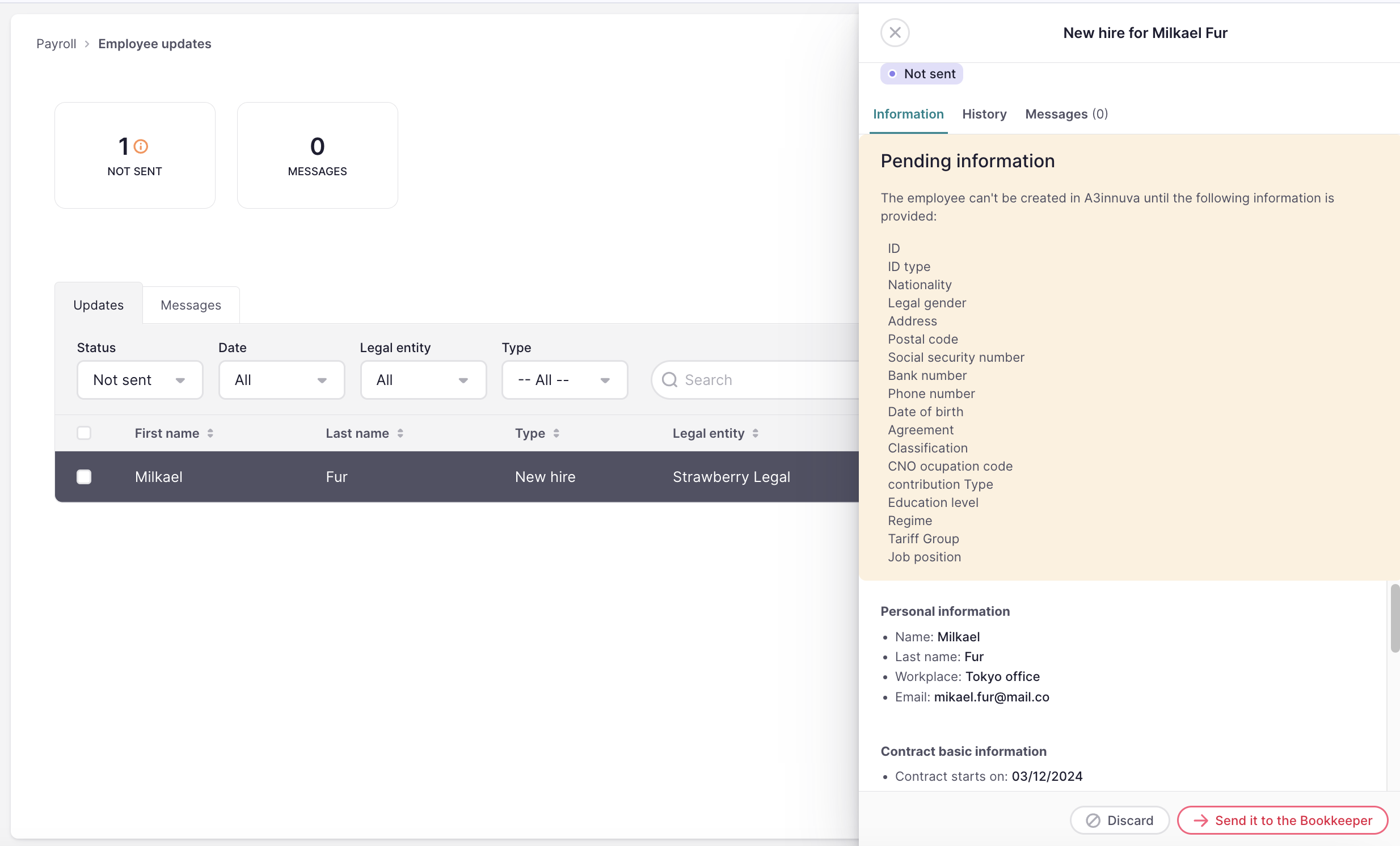
Per il mercato spagnolo, quando si importano nuovi dipendenti o si modificano contratti per entità legali collegate a A3innuva, gli utenti vedranno 8 campi di contratto nell'importatore:
- Codice dell'accordo
- Categoria dell'accordo (classificazione)
- Categoria professionale
- Tipo di contribuzione
- Regime
- Occupazione TGSS
- Occupazione CNO
- Il livello educativo e il tipo di contratto → opzioni fornite da A3innuva
Le aziende spagnole possono gestire modifiche in blocco direttamente utilizzando il Contract Edit Importer, e i campi possono essere importati quando si creano nuovi dipendenti tramite il Employee Creation Importer.
Cessazioni
Quando termini un dipendente in Factorial, verrà generato un aggiornamento dipendente all'interno di Factorial, consentendoti di sincronizzarlo con a3innuva. Una volta sincronizzato, il dipendente apparirà automaticamente in a3innuva come cessato.
Dati sincronizzati:
- Data di cessazione
- Motivo della cessazione
Le cessazioni possono essere sincronizzate in entrambe le direzioni: Factorial → a3innuva o a3innuva → Factorial.
Per sincronizzare le cessazioni da Factorial a a3innuva:
- Innanzitutto, termina il dipendente
- Una volta fatto, naviga su Busta paga → Aggiornamenti dipendenti
- Clicca per aprire il dipendente cessato
- Clicca su Termina dipendente in a3innuva
Modifiche personali
Quando aggiorni un certo dipendente in Factorial, verrà generato un aggiornamento dipendente all'interno di Factorial. Mostriamo una tabella con le differenze, consentendoti di sincronizzarla con a3innuva. Una volta sincronizzato, gli aggiornamenti dei dipendenti appariranno automaticamente in a3innuva.
Per sincronizzare gli aggiornamenti dei dipendenti:
- Innanzitutto, apporta un aggiornamento all'interno del profilo del dipendente
- Naviga su Busta paga → Aggiornamenti dipendenti
- Clicca per aprire l'incidenza di aggiornamento del dipendente
- Se vuoi, controlla le differenze tra Factorial e a3innuva
- Clicca su Aggiorna in a3innuva
Modifiche contrattuali
Quando aggiorni determinati campi contrattuali in Factorial, verrà generato un aggiornamento dipendente all'interno di Factorial, consentendoti di sincronizzarlo con a3innuva. Una volta sincronizzato, gli aggiornamenti contrattuali appariranno automaticamente in a3innuva.
Le modifiche contrattuali possono essere sincronizzate in entrambe le direzioni: Factorial → a3innuva o a3innuva → Factorial.
Per sincronizzare gli aggiornamenti contrattuali da Factorial a a3innuva:
- Innanzitutto, apporta un aggiornamento all'interno del contratto del dipendente
- Naviga su Busta paga → Aggiornamenti dipendenti
- Clicca per aprire l'incidenza di aggiornamento del contratto
- Clicca su Sincronizza aggiornamenti in a3innuva
Assenteismi
Quando viene creata un'assenza in Factorial, verrà generato un aggiornamento dipendente all'interno di Factorial, consentendoti di sincronizzarlo con a3innuva. Una volta sincronizzato, l'assenza apparirà automaticamente in A3innuva.
Per sincronizzare le assenze tra Factorial e a3innuva, devi prima includere i tipi di assenza a3innuva nella tua politica di ferie in Factorial e configurarli per generare un aggiornamento dipendente.
Per includere i tipi di assenza a3innuva:
- Nel tuo menu laterale, vai su Impostazioni
- Nella sezione Tempo, clicca su Ferie
- Clicca per vedere la Politica di ferie
- Clicca su Modifica l'assegnazione delle ferie
- Sotto Informazioni di base → Tipi di assenza seleziona i tipi di assenza a3innuva
- Salva modifiche
Per generare aggiornamenti dipendenti dalle assenze:
- Nel tuo menu laterale, clicca su Busta paga → Aggiornamenti dipendenti
- Clicca sull'icona dei tre punti nell'angolo in alto a destra e seleziona Impostazioni aggiornamenti 3. Abilita i tipi di assenza a3innuva
È importante notare che l'assenza verrà sincronizzata con a3innuva solo quando l'utente seleziona un tipo di assenza proveniente da a3innuva. Per impedire ai dipendenti di richiedere un tipo di assenza non proveniente da a3innuva (uno predefinito da Factorial), disattiva quei tipi di assenza da Impostazioni → ferie.
Per sincronizzare le assenze:
- Innanzitutto, assicurati che l'assenza sia richiesta e approvata
- Naviga su Busta paga → Aggiornamenti dipendenti
- Clicca per aprire l'incidenza di assenza
- Clicca su Crea assenza in a3innuva
Quando un assenteismo (ferie, sciopero, permesso retribuito, personalizzato, assenza ingiustificata e sospensione dal lavoro non retribuita) è stato modificato in Factorial, puoi anche sincronizzare l'edizione e la cancellazione a a3innuva, affinché il software di busta paga sia aggiornato. D'altra parte, le modifiche alle IT non possono essere sincronizzate.
L'assenza verrà automaticamente mostrata in a3innuva Nómina → Presenza

Disabilità temporanee (IT)
Per garantire che i calendari dei dipendenti e i dati sulle buste paga siano sempre allineati, Factorial può importare automaticamente i registri di Disabilità Temporanea (IT) creati in a3innuva. Questo significa che quando un congedo per malattia è registrato in a3innuva (tramite aggiornamenti delle istituzioni pubbliche), apparirà automaticamente in Factorial senza inserimento manuale.
Come funziona la sincronizzazione
La sincronizzazione è un processo proattivo che viene eseguito quotidianamente per mantenere entrambe le piattaforme in armonia.
- Frequenza: La sincronizzazione avviene ogni notte alle 00:00h CET.
- Ambito: Factorial controlla le nuove o aggiornate assenze per malattia del mese corrente e del mese precedente per garantire che non vengano perse modifiche tardive.
- Aggiornamenti automatici: Se un congedo per malattia viene modificato in a3innuva (ad esempio, viene aggiunta una data di fine), l'assenza esistente in Factorial verrà aggiornata automaticamente.
Cosa succede in Factorial?
Una volta che la sincronizzazione viene eseguita e trova un nuovo record:
- Calendario dipendente: Viene automaticamente creata una nuova assenza.
- Aggiornamento dipendente: Una nuova voce appare in Busta paga → Aggiornamenti dipendenti. Questi aggiornamenti presenteranno un banner specifico che indica che sono stati Sincronizzati da a3innuva
- Notifiche: Il Team Manager e il Supervisore delle assenze del dipendente riceveranno una notifica via email e nella casella di posta. E i manager HR designati (selezionati nelle impostazioni dell'integrazione) riceveranno un riepilogo quotidiano di tutti i risultati importati.
Integrazioni sulla busta paga
Puoi gestire le integrazioni sulla busta paga per i tuoi dipendenti nella sezione Integrazioni del modulo Busta paga. Una volta che hai esaminato e confermato che tutte le integrazioni dei dipendenti siano accurate:
- Clicca sul pulsante Sincronizza con a3innuva
- Tutte le integrazioni precedentemente definite in Factorial verranno automaticamente trasferite a a3innuva. Troverai queste integrazioni nella sezione Conceptos salariales in a3innuva.
Puoi trovare ulteriori informazioni su come gestire le integrazioni sulla busta paga in questo articolo: Come gestire le integrazioni sulla busta paga.

Per sincronizzare le integrazioni sulla busta paga con a3innuva, devi:
- Avere l'integrazione a3nom installata (integrazione a3nom)
- Assicurarti della parametrizzazione dell'integrazione a3nom (codice aziendale, codici delle entità legali, codici dei concetti di busta paga e codice dipendente a3nom), per questo, vai su Impostazioni > Busta paga > Integrazioni sulla busta paga > a3nom
Factorial Professionisti e a3innuva Nómina
Factorial Professionisti è uno strumento di Factorial che collega le aziende che utilizzano Factorial con i contabili. Fornisce un canale di comunicazione diretto e veloce in cui gli aggiornamenti relativi alla busta paga possono essere facilmente segnalati. Rileva automaticamente le modifiche rilevanti per la busta paga (ad esempio, nuove assunzioni, licenziamenti, congedi per malattia) e notifica il contabile in tempo reale.