Factorial offers multiple options for clocking in and out through their platform, which can be accessed via both desktop and mobile devices.
Where to find Time Tracking systems
- On your sidebar, go to Settings
- In Time, select Time tracking
- Open a Time tracking policy
- Scroll down until you find Time tracking system

Desktop clock in/out
Enable your employees to easily clock in and out from their desktops with just a simple click of a button.
Additionally, you can incorporate the capability to track their work location. Employees can select their work location using a searchable hierarchy of Location type → Workplace → Work area, with their default workplace pre-filled at clock-in to make the process faster. The selected location is displayed on the timesheet, can be added or edited when creating or updating shifts, and is included in approval requests so admins can see exactly which workplace or work area has been changed.

Mobile clock in/out
By enabling the mobile clock in/out option, you will have the ability to track geolocation when employees clock in/out, or you can provide them with the option to clock in by scanning a QR Code.

The Clock-in widget can be used without an internet connection, as long as the employee has previously logged in to the app. Employees can clock in and out of shifts and breaks, use geolocation, and select locations, projects, and break types while offline.
Any data recorded offline syncs automatically once the connection is restored or the app is reopened, and if syncing fails, employees can view the reason and access a log of unsynced shifts.
Offline behaviour for minimum break warnings and shift overrun confirmations remains consistent with the online experience.
Learn more here.
Face recognition
October 1st (2024) this tool will no longer be available in Factorial in Europe due to a change in criteria expressed by the European Data Protection Board
With this option, employees can use facial recognition technology to clock in/out. The facial recognition system captures an image of the employee's face and analyses it using sophisticated algorithms to identify unique facial features and patterns. If the system recognises the employee's face as a match to their registered profile, it confirms their identity and records their clock-in time.
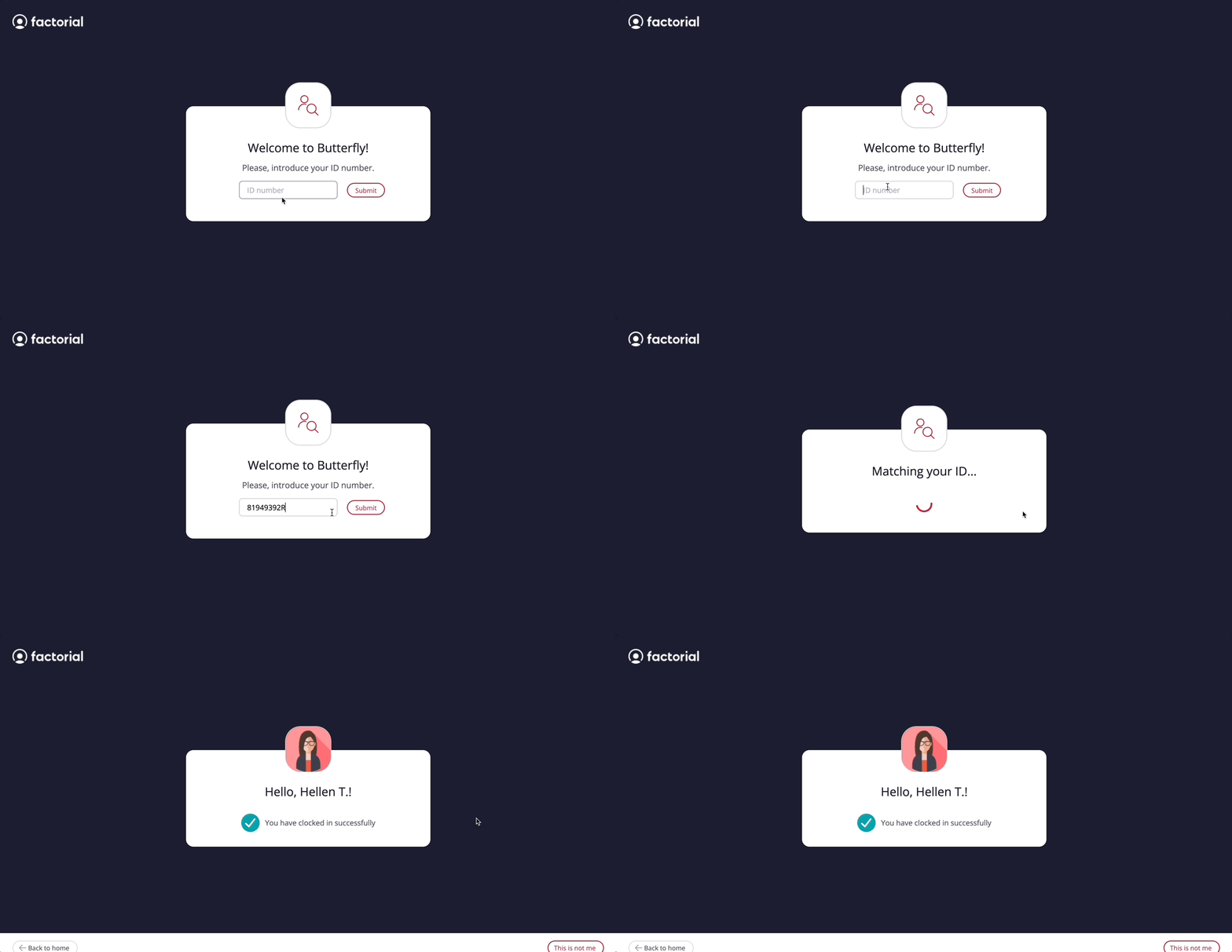
Clock in/out by ID
Allow your employees to clock in/out from the workplace by entering their ID in a shared device.
When an employee's contract expires, they are no longer visible in the time and attendance module. This means that their clock-in and clock-out records are no longer registered or displayed, as the system considers them inactive.
QR code clocking
A QR code is displayed at the workplace entrance. Employees scan this code using the Factorial app, enabling instant clock-in/out. This method requires enabling QR-based policies within the time-tracking settings.
Learn how to configure it here.