Geolocation records where employees are when they clock in or out from the Factorial mobile app. Depending on your plan, you can also get alerts or block clock-ins made away from the workplace (geofencing).
- Location is only captured at the moment of each clock-in, clock-out or break. It's never tracked in the background or between clocks.
- Show me geolocation on a map is available on any Time Tracking plan. Alert me of locations away from workplace and Block clocks ins away from workplace need the Enterprise plan. Without it, only the map option is shown.
To activate geolocation
- On your sidebar, go to Settings
- In the Time section, select Time tracking
- Click the arrow next to the policy you want to configure
- In Time tracking system, turn on Mobile clock in/out
- Turn on Use geolocation
- In Geolocation preferences, choose one option:
- Show me geolocation on a map: saves the coordinates of each mobile clock so you can see them on a map.
- Alert me of locations away from workplace: also flags clocks made outside the workplace's clock-in area.
- Block clocks ins away from workplace: refuses clocks made outside the clock-in area. It includes the alerts too.

- Use geolocation and the Entrance App (QR code) can't be on in the same policy. Turning one on turns the other off.
- Turning off Mobile clock in/out or Use geolocation clears the geolocation preferences.
Set the clock-in area of a workplace
Alerts and blocking compare each clock with the clock-in area of the workplace. Make sure every workplace has a complete address first: a workplace without an address or coordinates is never checked, and its clocks show Unknown radius in the timesheet.
- On your sidebar, go to Organization
- Open the Workplaces tab and select the workplace
- Go to the Settings tab
- In Attendance, choose the Clock-in location. By default it's the same as the workplace address, but you can move it if the entrance is somewhere else
- Use the Clock-in area slider to set the radius, from 50 m to 1 km

The phone's GPS accuracy (up to about 100 m) is added to the radius, so the effective area can be slightly bigger than the one you set. The same area is used for alerts and blocking.
Where to see the location of each clock
- On your sidebar, go to Time tracking
- Select the employee
- In the timesheet, click the location tag of the shift to open a map with the employee's coordinates and the workplace's clock-in area
With alerts or blocking on, the tag shows whether the clock was inside or outside the area, and you can use the Location issues filter.

Geolocation in the mobile app
- Slide to clock in
- The first time, the app asks for permission to use your location. Tap Turn on location permissions and choose Allow once or Allow while using the app
- If your location isn't precise, choose Activate precise location (recommended) or Clock in with current location
- Slide to clock in again and confirm your location

With Use geolocation on, location permission is required: a mobile clock without coordinates is always refused, whatever preference is selected. Precise location greatly improves accuracy, and it's required for blocking.
Block clocks away from the workplace
With Block clocks ins away from workplace selected, Factorial checks the employee's location on every clock made with the mobile app:
- What's checked: clock-in, clock-out (including the clock-out of a forgotten shift), and the start and end of breaks.
- Which workplace: only the workplace selected when clocking in. It's pre-selected from the last shift, then the employee's main workplace. Clock-out is checked against the workplace of the open shift, so clocking out at a different workplace is blocked.
- Fake locations: clocks made with a simulated GPS location are refused.
What the employee sees
If the employee is outside the clock-in area, the app shows Outside of the expected location. They can tap Try again. If they're still outside, the app shows You couldn't clock and nothing is recorded. There's no retry limit.

If the app can't get the phone's location, the employee sees one of these messages:
| Situation | Title | Message |
|---|---|---|
| Location permission not granted yet | Enable geolocation clock in | Factorial needs your location at the time you clock in and clock out, as your company has a geolocation policy. |
| Location permission denied | Allow Factorial to use your location | Your company has a geolocation policy for clock in and clock out. If you have questions, please contact your manager. |
| GPS or location services off | We can’t locate you | It looks like location services are turned off for this device. We need your location for clock in and clock out. |
| Precise location off | Confirm your location | Turn on precise location to ensure accurate location and clock-in. |
| Location not found | - | Your location could not be retrieved, please try again in a place with a better GPS signal. |
Work from home and business trips
If work location tracking is on, only clocks with the location type Office are checked against the workplace. Home and Business trip clocks are never blocked or flagged. If work location tracking is off, every mobile clock is treated as Office and checked.
Geofencing alerts
With alerts or blocking on, Factorial flags location issues in three ways:
- A real-time email to the direct manager for each clock made outside the area
- A weekly summary email, sent on Mondays
- Markers in the timesheet: a warning on the location tag and the Location issues filter
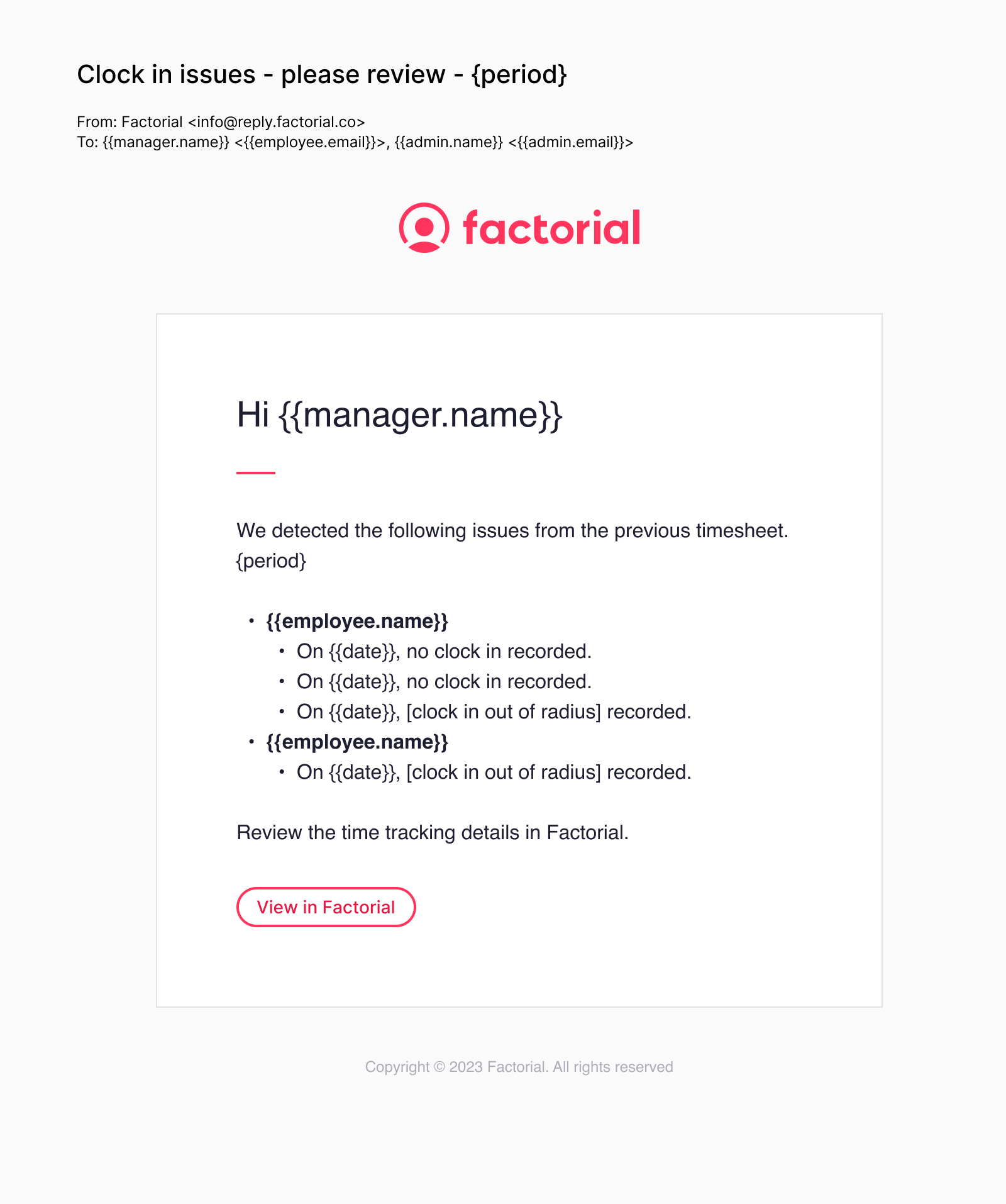
With blocking, alerts rarely appear because blocked clocks aren't saved.
Limitations
- Geolocation and geofencing only apply to the mobile app, including mobile clocks made through One. They don't apply to computer or phone-browser clock-ins, shared devices (Clock in by ID), the Entrance App, face recognition, the API or manual timesheet edits.
- If the policy also allows computer clock-in, employees can clock in from anywhere through the browser.
- There's no restriction by IP address, Wi-Fi network or device.
- The minimum clock-in area is 50 m.
- Only one workplace is checked per clock.
Download reports with geolocation
Admins can download time tracking reports that include coordinates and location issues.
- On your sidebar, go to Time tracking
- Click the three dots in the upper-right corner
- Select Download report
- In Export type, choose Time Tracking Export - Workplaces and geolocation to see the location of each shift and the shifts made outside the area
- Choose the File format, check the employees and the dates (From and To), and click Save

The Workplaces and geolocation export type only appears when at least one time tracking policy has Use geolocation turned on.
When the export is ready, you'll get an email. You'll also find the file in My documents.