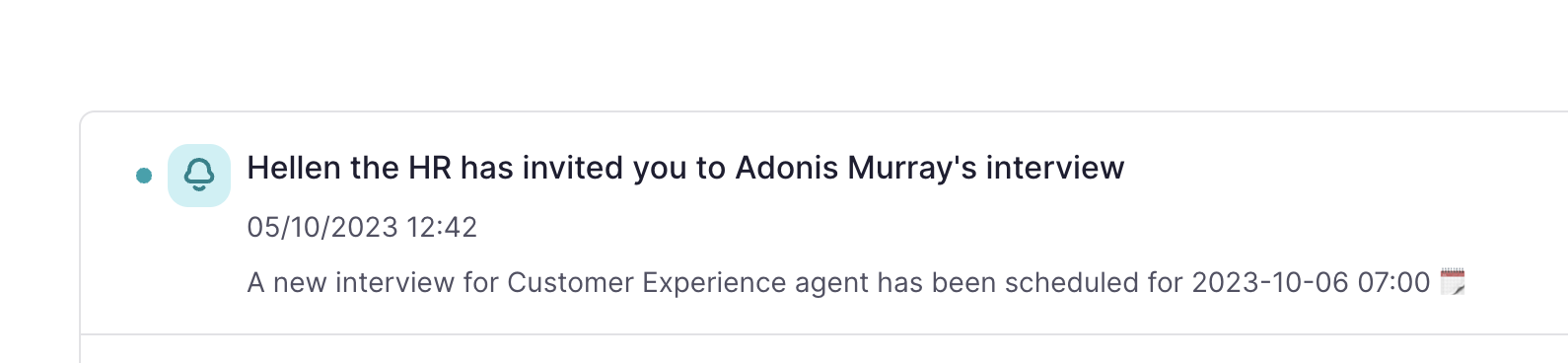
To be a scheduling organizer, you must connect your calendar to Factorial.
Invites to connect employees' calendars can only be sent by administrators
How to connect your calendar to Factorial
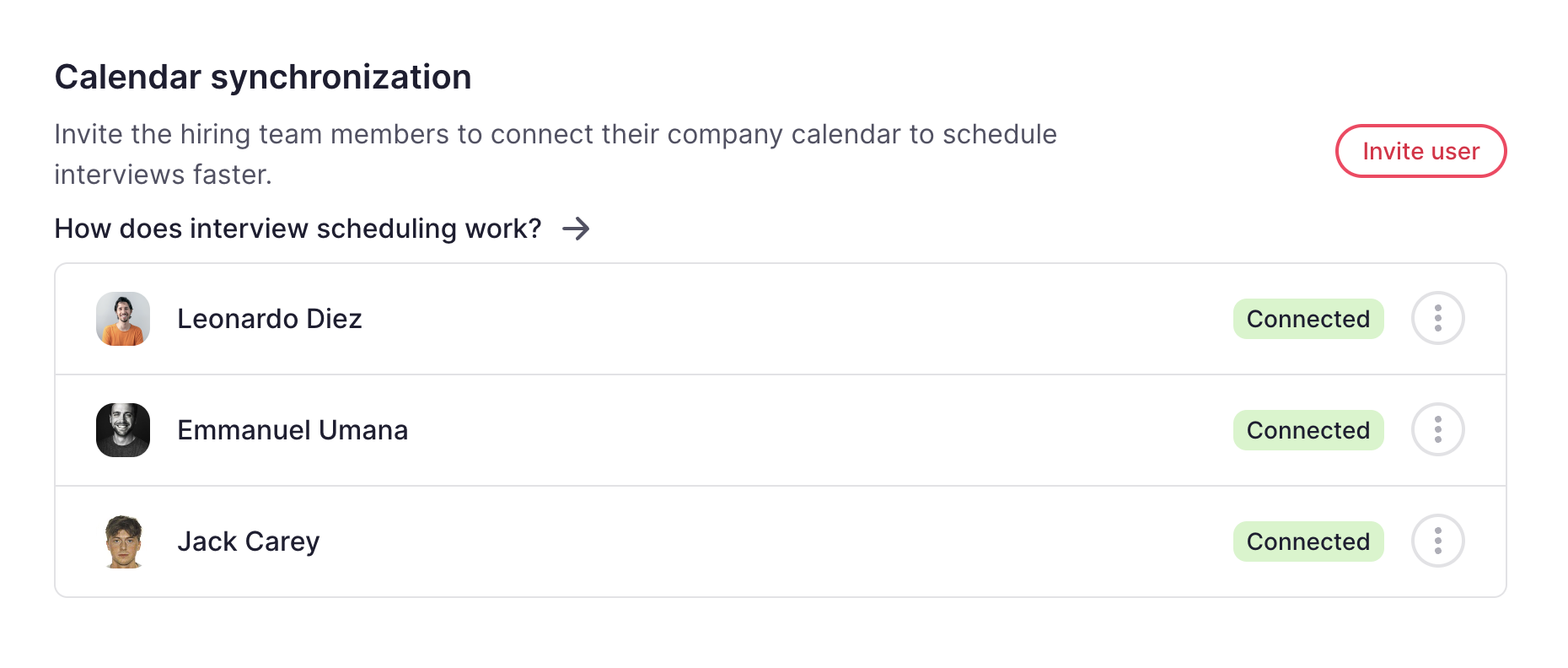
- From Settings, scroll down until People
- Select Recruitment
- From here click on the Integrations tab
- Set up who can connect the calendar, by clicking on Invite user
After being invited, everyone will receive a notification to configure their calendars. To configure your calendar, go to your Personal Settings > Connect Calendar. This will open an external window where you can grant our partner, Cronofy, access to your work calendar. Supported calendar providers include iCloud, Google, Office 365, Exchange, and Outlook.

You can invite hiring managers and also yourself.
Creating an interview
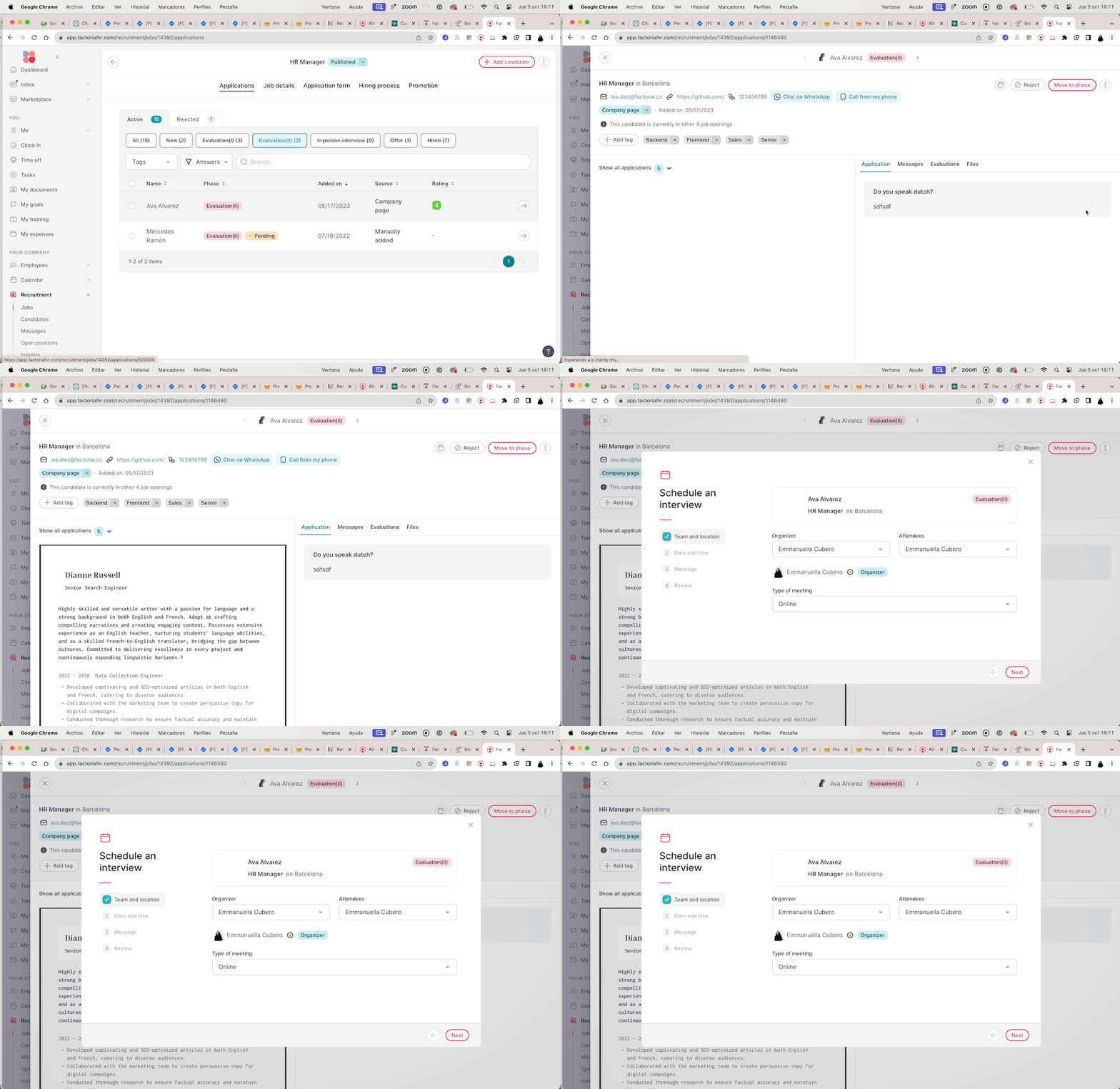
- From your sidebar menu, go to Recruitment
- Select a job opening, open the candidate’s application
- Set up the meeting by clicking the calendar button, located on the header

1. Team and location
- From the modal window, fill in the information:
- Organizer
- Attendees
- Type of meeting
- Click on Next
The organizer will be added as an attendee too, but you can unselect them when configuring attendees.
Hold the interview in Factorial Meetings
Choose Factorial Meetings as the interview type to hold the call inside Factorial. You can schedule it, join it and review it without leaving the platform. It also works with booking links, when the candidate picks the time.
- The invitation includes the link to join. Before joining, the candidate is told that the call uses AI notes and a transcript.
- Candidates don't need a Factorial account. They join from the link in their invitation, in the browser.
- The candidate waits in a lobby until someone from the hiring team lets them in.
To join the interview: at interview time, open the candidate's application, go to the Interviews tab and click Join on the interview card.
To review the interview: when the call ends, open the interview. You will see an AI summary with action items, your own notes, and the transcript with the speaker and time for each line. Each interviewer sees only their own notes. When the interview ends, the AI Candidate Report runs again and uses the transcript as evidence.
Factorial Meetings is included in the F26 ATS plan, and Communications must also be active for your company.
2. Date and Time
- Check your invitees’ availability
- Choose the Slot, Duration, and Time zone
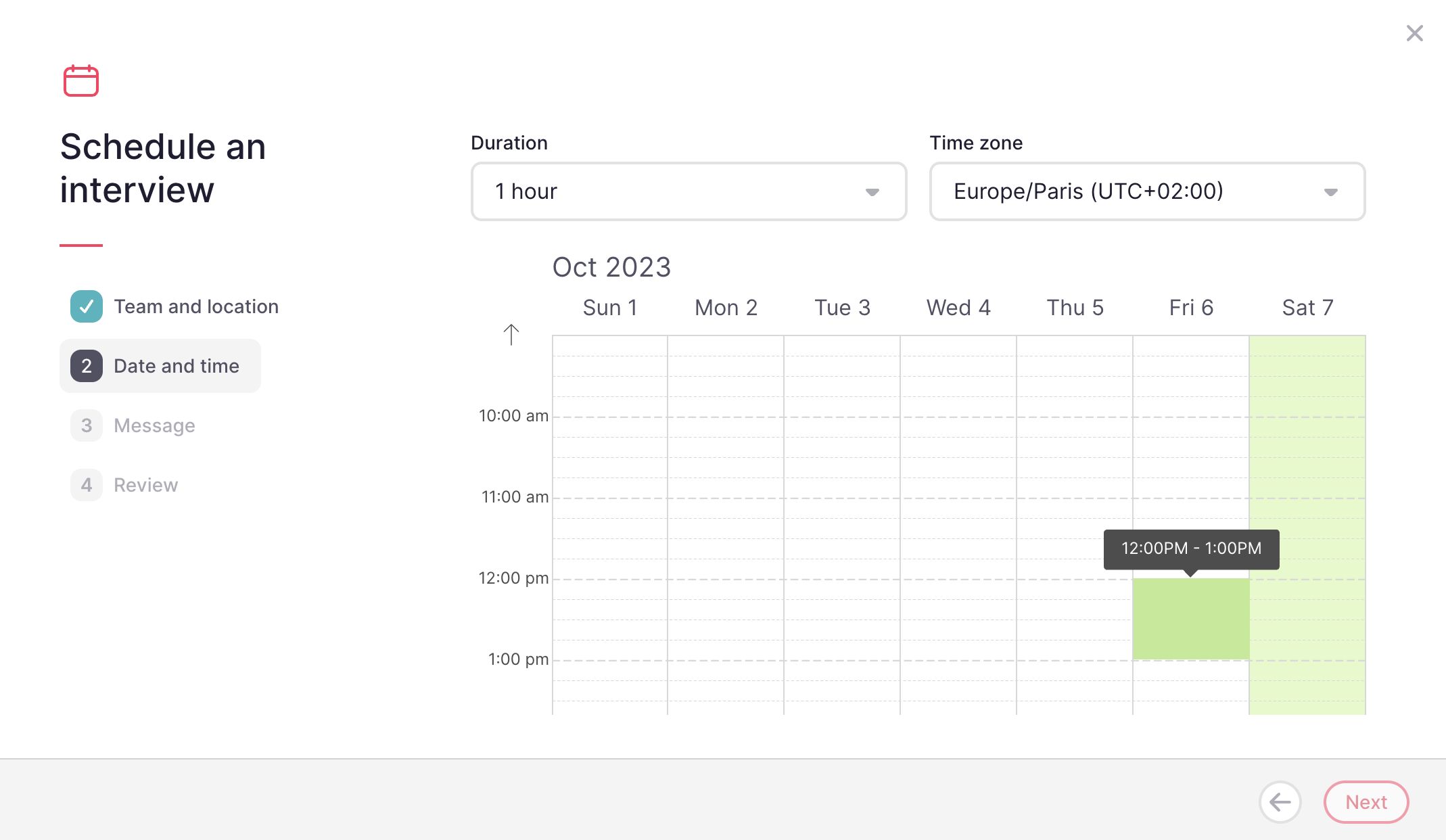
Take into account, that if a user has not connected their calendar, their availability won’t be reflected on the availability selector
3. Message
- Create your Custom message and + Add variables
- Click on Next
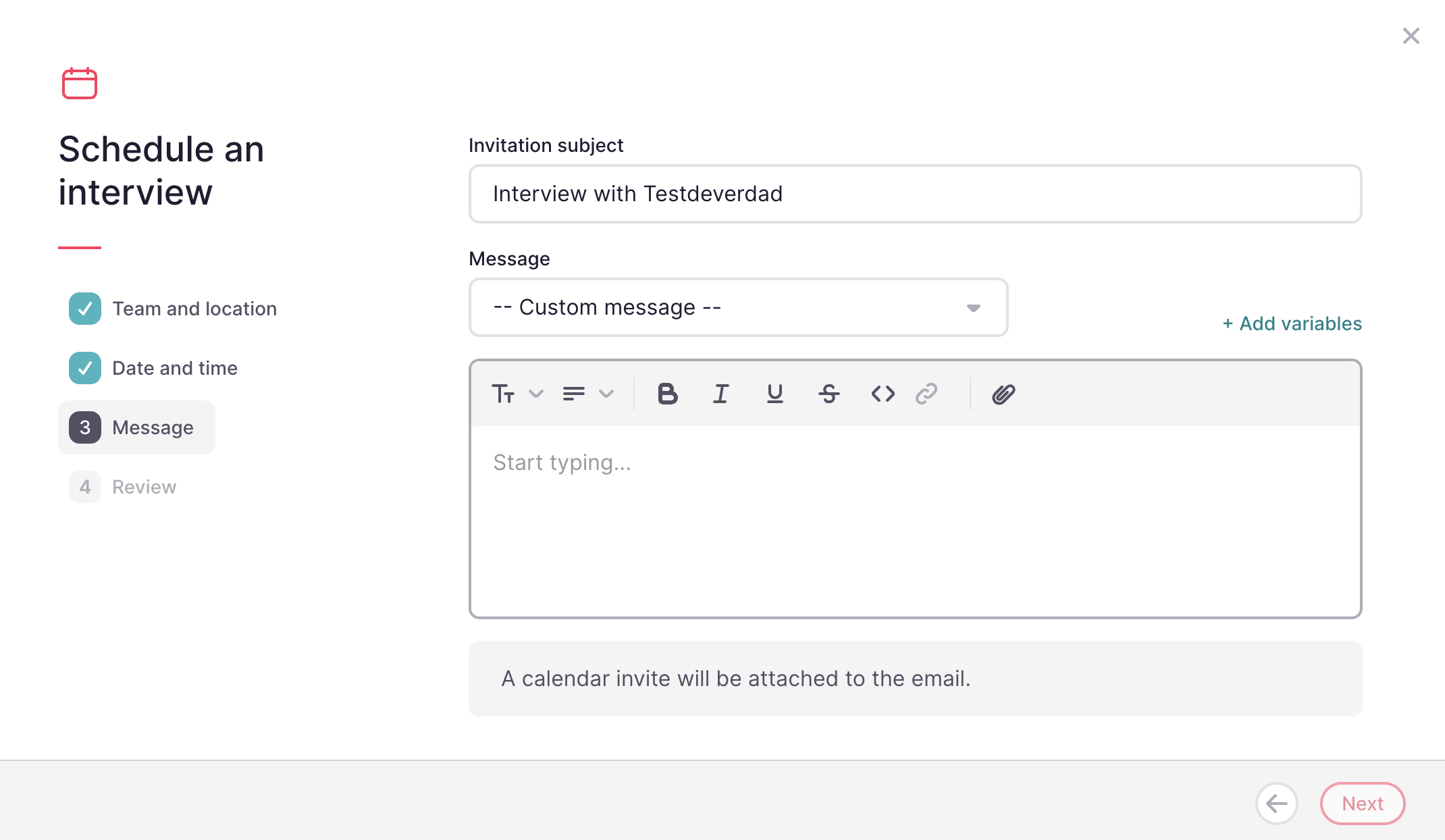
All attendees will receive an invite to their calendars.
4. Review
- Review the invitation
- Send it
The scheduled interview will appear on the job application
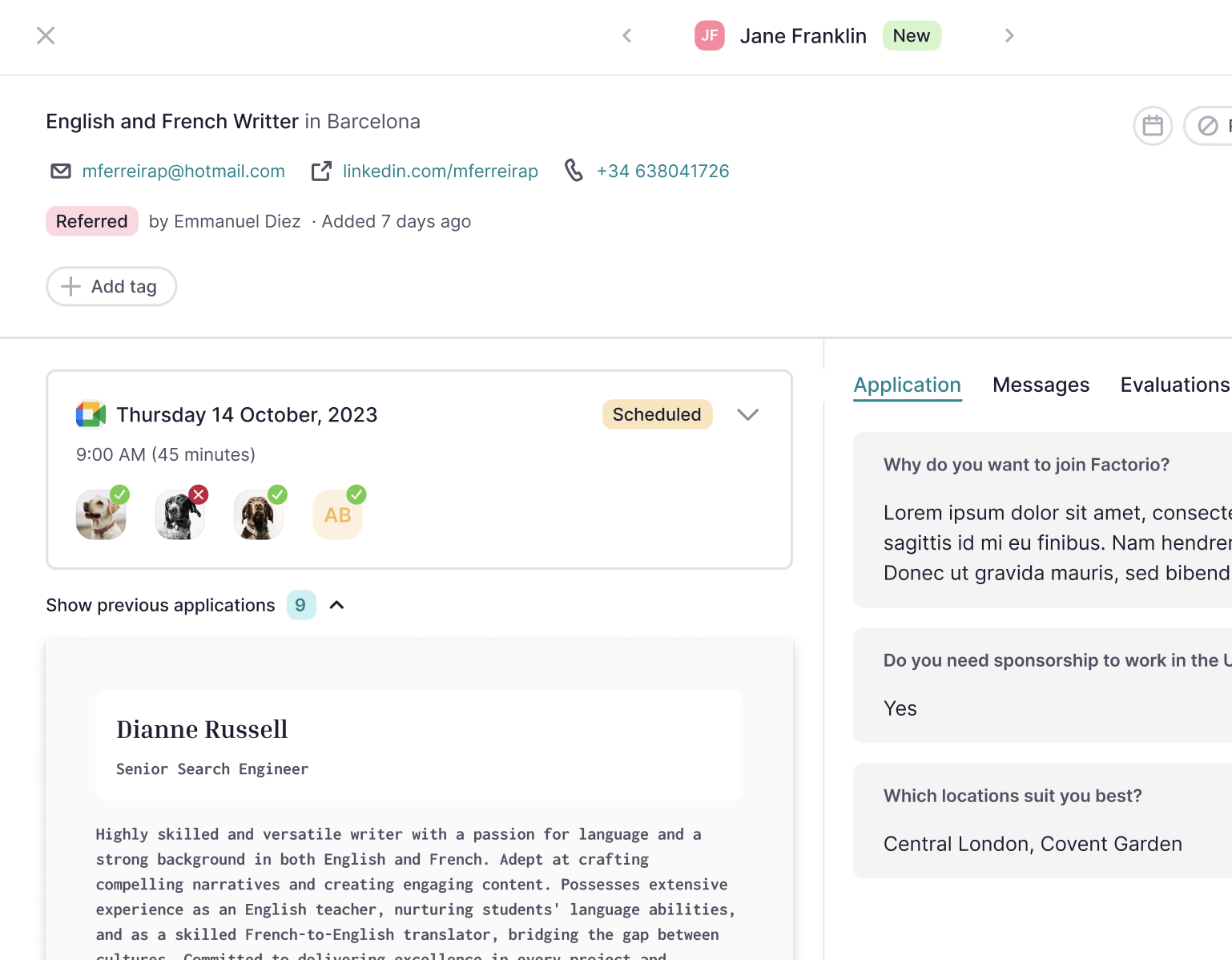
All hiring managers will receive a notification in their inbox