What is a legal entity?
A legal entity is a distinct company or organisation that has its own legal identity. It can own assets, enter into contracts, and be held responsible for its actions. In Factorial, legal entities help you manage multiple companies or branches within a single account.
Why are legal entities important in Factorial?
- Separate operations: Keep different companies or branches organised.
- Tailored settings: Customize settings like currency, address, and tax details for each entity.
- Employee management: Assign employees to the correct legal entity for accurate payroll and benefits.
Creating and managing legal entities
You can create as many legal entities as needed to reflect your company’s real structure.
- There will always be one main (primary) legal entity, which represents your company’s official billing and subscription data.
- Any additional entities you create will be considered secondary legal entities, which can be configured independently (e.g., with different payroll cycles, currencies, or tax information).
The main legal entity can't be deleted, and its legal name and tax ID can't be changed, because they are linked to your billing and subscription details. You can still update its other details, such as the address or bank details. To change its legal name or tax ID, or to choose another main legal entity, contact your Factorial Account Manager.
How to add a new legal entity
- On your sidebar, go to Settings
- In General, click on Company details
- Click on Add new legal entity - in the upper right corner
- Enter a Legal entity name
- Select the Country and the Currency
- Click on Add legal entity

How to edit a Legal Entity information
- In your sidebar, got to Settings → Company Details
- Select the Legal entity you want
- On this page, you can add or edit essential details about the legal entity, including:
- Legal Info: the business's legal name and Tax Identification Number.
- Currency Information: the currency used for the legal entity.
- Address: the company's legal address.

The legal entity’s name can be changed as long as it is not the main legal entity.
Create or edit many legal entities at once
If you have many legal entities to create or change, attach a spreadsheet to One or describe them in the chat. One prepares a table for you to review and saves them all once you confirm. Learn how to create and edit legal entities in bulk with One.
How to delete a legal entity
If you need to remove one of your secondary legal entities from Factorial, follow these steps:
- In your sidebar, go to Settings
- Click on Company details
- Locate the legal entity you want to delete
- Click on the gear icon (⚙️) next to it and select Remove legal entity

Important notes:
- The main legal entity can't be deleted, and its legal name and tax ID can't be changed, because they are linked to your billing and subscription details. You can still update its other details, such as the address or bank details. To change its legal name or tax ID, or to choose another main legal entity, contact your Factorial Account Manager.
- Only admins with the correct permissions can remove a legal entity.
- Once deleted, all data linked to that legal entity will no longer be accessible.
How to change an employee’s legal entity
An employee’s legal entity is part of their agreement. To move an employee to another legal entity, create a legal entity change from the employee’s Contracts section:
- On your sidebar, go to Organisation
- Select the employee
- Go to the Contracts/ Agreements tab
- In the upper right corner, click on the arrow next to the + button and select Change legal entity
- In Transfer details, select the New legal entity and the New employee group, and add the Effective date (the date from which the new conditions apply)
- Click on Next and review the Role, level and salary, Working hours and Legal and extras steps
- Review the Schedule changes step (for example, to schedule a new manager or team for the new legal entity) and click on Update conditions

An employee’s legal entity can only be changed from their agreement. From Settings → Company details, you can only move people between employee groups of the same legal entity, and this doesn’t change their agreement.
How to manage employee groups
Employee groups help you organise the people within a legal entity. To create an employee group:
- On your sidebar, go to Settings
- In General, click on Company details
- Click on View legal entity on the legal entity you want
- Open the Employee groups tab
- Click on New group
- Enter the employee group Name
- Click on Save

To move people between employee groups of the same legal entity, open the employee group and click on Assign people. Moving people between groups doesn’t change their agreement or their legal entity. To move someone to a different legal entity, follow the steps in How to change an employee’s legal entity.
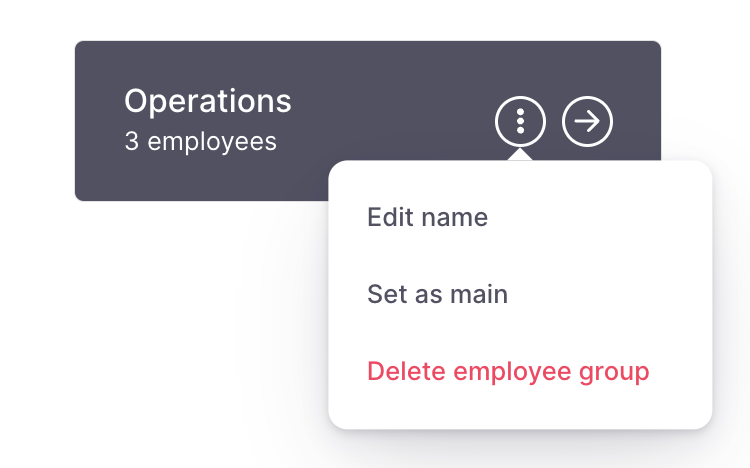
How to delete employee groups
If you want to delete an employee group, you must first reassign the employees from that particular group to another employee group. Once you have successfully assigned employees to the new group, you can proceed with deleting the original employee group.
Please note that each employee can only be associated with one legal entity. If you have employees who work in multiple markets or for different companies within your organization, we recommend including them in the main legal entity or the one where they work the majority of their hours. Additionally, consider the currency used by the specific legal entity, as the employee's pay-slips will be generated in the same currency.
Contracts
In this section, you can customize settings related to your employees' contracts.
Information sharing between legal entities within the same account
In Factorial, information within different legal entities belonging to the same account can be shared, as long as visibility and action permissions allow it, according to each user’s or permission group’s configuration.
This means that even if employees belong to different legal entities, certain data and actions can be viewed or managed when the appropriate cross-entity permissions have been granted.
For example:
-
An employee can be assigned as the manager of another employee belonging to a different legal entity, provided that the user performing the action has permission to edit employee information across legal entities.
This behavior has also been verified in the platform demo. - Employee data visibility and administrative actions (such as viewing or editing employee information or assigning roles) can extend across legal entities, depending on how the permission group’s visibility settings are configured.
Important limitations to consider:
By default, many permissions such as “People in their legal entity” restrict visibility and actions to employees within the same legal entity.
To allow users to view or act on employees from other legal entities, broader permissions must be configured (for example, “Entire company” or other custom settings).
Careful permission configuration is essential to ensure data security and internal compliance.