Use the org chart to understand reporting lines, organisational structure, and vacant roles. It is useful for onboarding, talent planning, and keeping leadership structure up to date.
To view the organisational chart:
- In the sidebar, go to Organisation
- Access the Org Chart tab
- View the dynamically generated chart based on employee-manager relationships
- Filter by:
- Workplace
- Legal entity
- Hire date
- Legal gender
- You can click on any person to see more details

Any personnel changes (hires/terminations) update the chart in real time
To view an employee in the org chart from their profile
- Open the employee's profile
- Click View in org chart in the profile header
The Org Chart tab opens with the employee's name already in the search box, and the chart is centred on their node, which appears selected. The link includes the employee, so reloading the page or sharing the link with someone else also takes you straight to that person.
The View in org chart button only appears if you can see the org chart and the employee is active. It does not appear on your own profile or on the profile of former employees, as they are not part of the org chart.
To export the organisational chart
- On your sidebar, click on Organisation
- Select Org Chart
- Press (...)
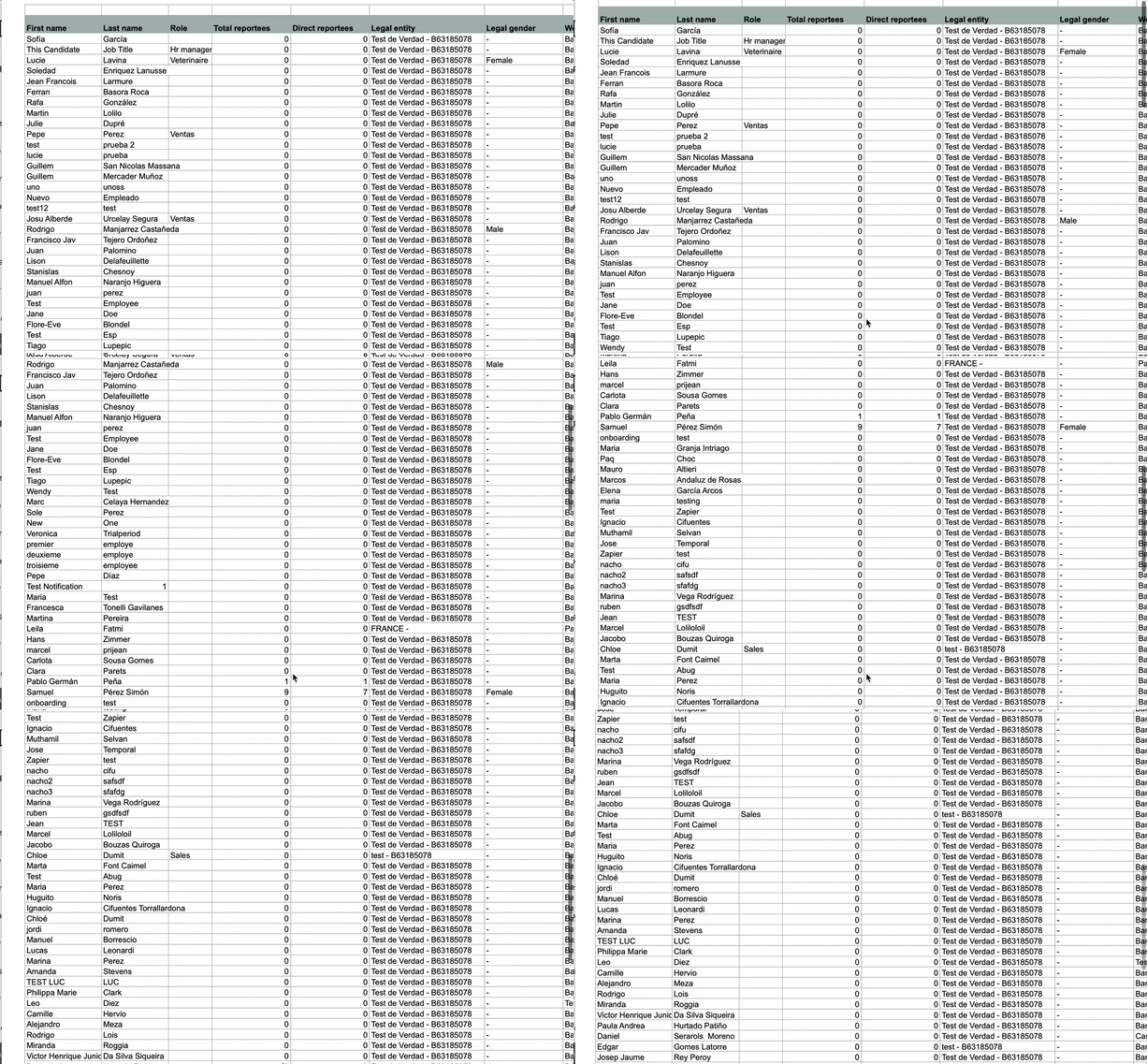
- Click Export org chart (xls)

You will be redirected to another page (xls. format) where you can visualize the organizational chart.