A Cost center is a department or role in a company that incurs costs without directly generating revenue. Cost centers are the primary level of cost analysis in a company.
Cost centers enable companies to control total costs, decide resource allocation and calculate profitability by product or department.
To create a Cost center
- On your sidebar, go to Settings
- Scroll down to Finance
- Select Cost Center
- Click on New- in the upper right corner
- Fill in the information. There are two mandatory fields: name and legal entity
- Click on Add cost center

Cost center assignment and dedication
Admins can edit the allocation of cost centers to a specific employees. Dedication can be up to 100% in a single cost center or distributed among several.
You can assign cost centers to employees in two ways: by assigning employees in bulk, or by assigning employees manually.
Assignments in bulk
- On your sidebar, go to Settings
- Scroll down to Finance
- Select Cost Centers
- Select Import button
- Download the template and fill it out with your employee's cost center assignment. When you've finished, upload the file.

Match the columns in order to proceed

Each employee can only be assigned to one cost center at a time. It is not possible to assign the same employee to multiple cost centers simultaneously.
Assign employees manually
- On your sidebar, go to Organisation
- Select the employee you want to assign the cost center
- In the Work details tab scroll down to Cost Center
- Click on Edit assignments
- Click on Add cost center
- Choose the cost center and the dedication
- Click on Save

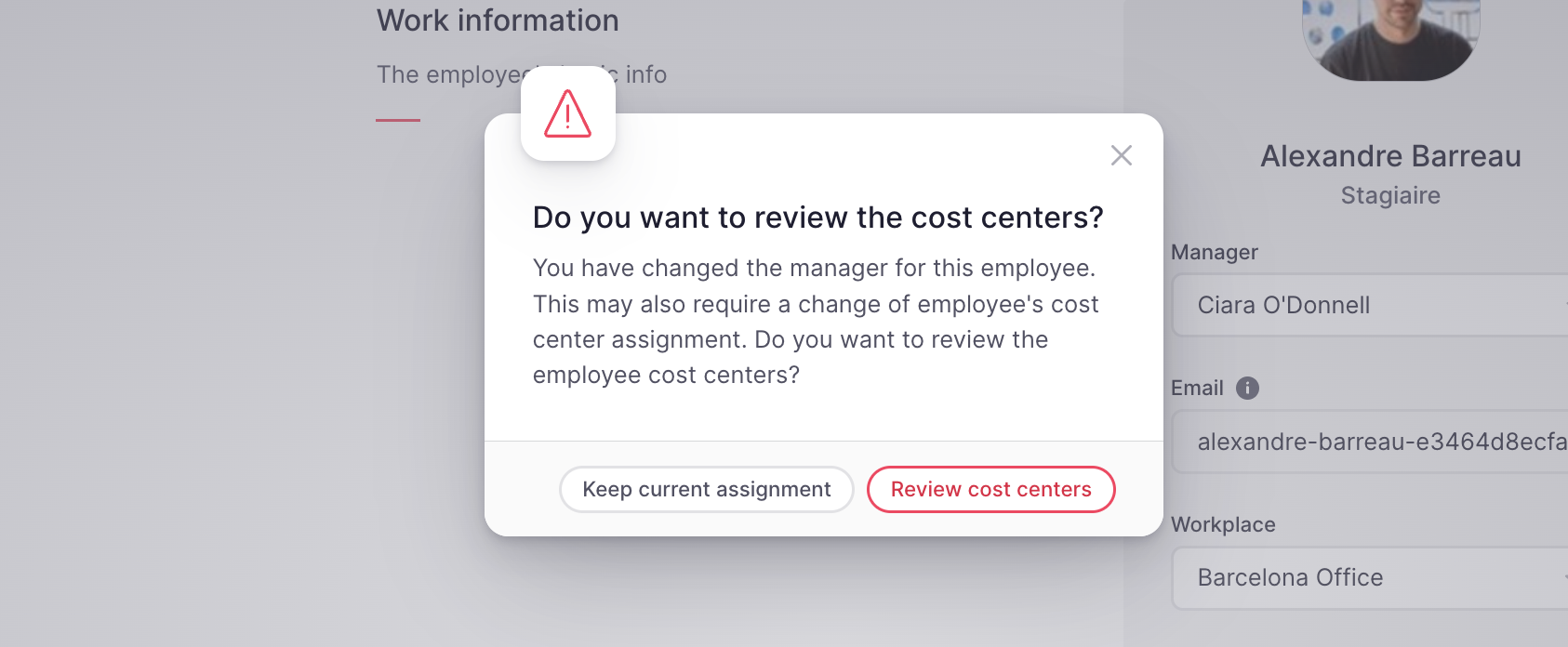
Every time a user changes information for an employee that may require a change in cost center assignment, such as a change in manager, workplace, or team, admins will be alerted to review the assignment.
To delete or rename a cost center
- Get to the cost center row you want to rename or delete
- Click on the 3 dots icon
- Select Delete or Edit

Keep in mind that a cost center can be deleted if there are no assigned employees to it for the current period.
Users will always be able to edit the name of a cost center.
People’s Assignments tab
In the People’s Assignments tab, you can manage and view each employee’s assignments to different cost centers. This section provides detailed information about current and upcoming assignments:
- Current Assignment: the cost center the employee is currently assigned to.
- Current Start Date: the start date of the current assignment.
- Current End Date: the end date of the current assignment.
- Next Assignments: upcoming assignments scheduled for the employee.
- Next Start Date: the start date of the next assignment.
- Next End Date: the end date of the next assignment.
Additionally, if you click on an employee’s name, you will access the Cost Center Employee History, which allows you to manage retroactive cost center assignments. This makes it easy to adjust and record past assignments to ensure all data is accurate and up to date.
