This article explains how to connect your HRIS to Factorial IT and keep your employee directory automatically up to date.
Why connect your HRIS?
Synchronizing with your HRIS allows you to automate many tasks that take up your time on a daily basis, such as managing your arrivals and departures, your teams, and the equipment you provide them.
Connecting your HR system to Factorial IT allows you to:
- Automatically create and update your employee directory
- Trigger onboarding/offboarding flows based on contract data
- Avoid manual data entry and reduce errors
- Ensure your device assignments and access policies are always accurate
You can connect one or multiple HRIS sources, for example if you use different HR tools by country or legal entity (e.g., 1 Payfit per country).
How to connect your HRIS
- Go to Settings > Employee Synch
- Choose your provider (Lucca, Payfit, Personio, BambooHR, etc.)
- Follow the steps to authenticate with Kombo
- Launch the first sync
Once connected, employees will be synced into Factorial IT with their metadata (names, emails, dates, jobs, etc.).
You can connect multiple HR sources if needed, and manage them independently.
Particularities related to Lucca
The Lucca x Factorial IT connection requires the activation of criteria in your Lucca settings to make onboardings and offboardings appear in Factorial IT. To do this, you must:
- Go to your Lucca administrator account > Settings > API Keys
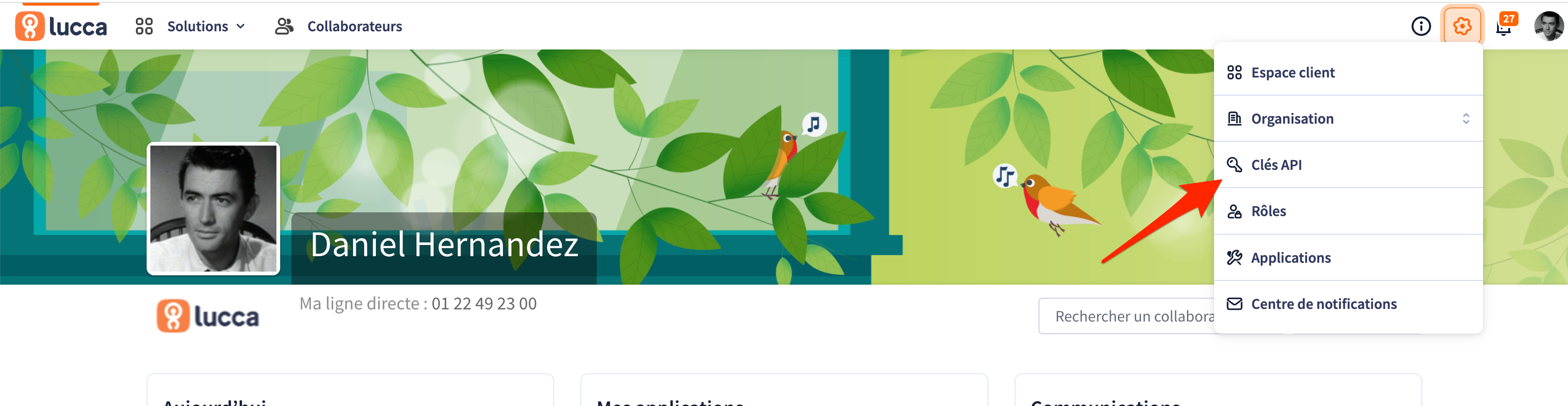
- Access the space dedicated to modifying the rights associated with the API key
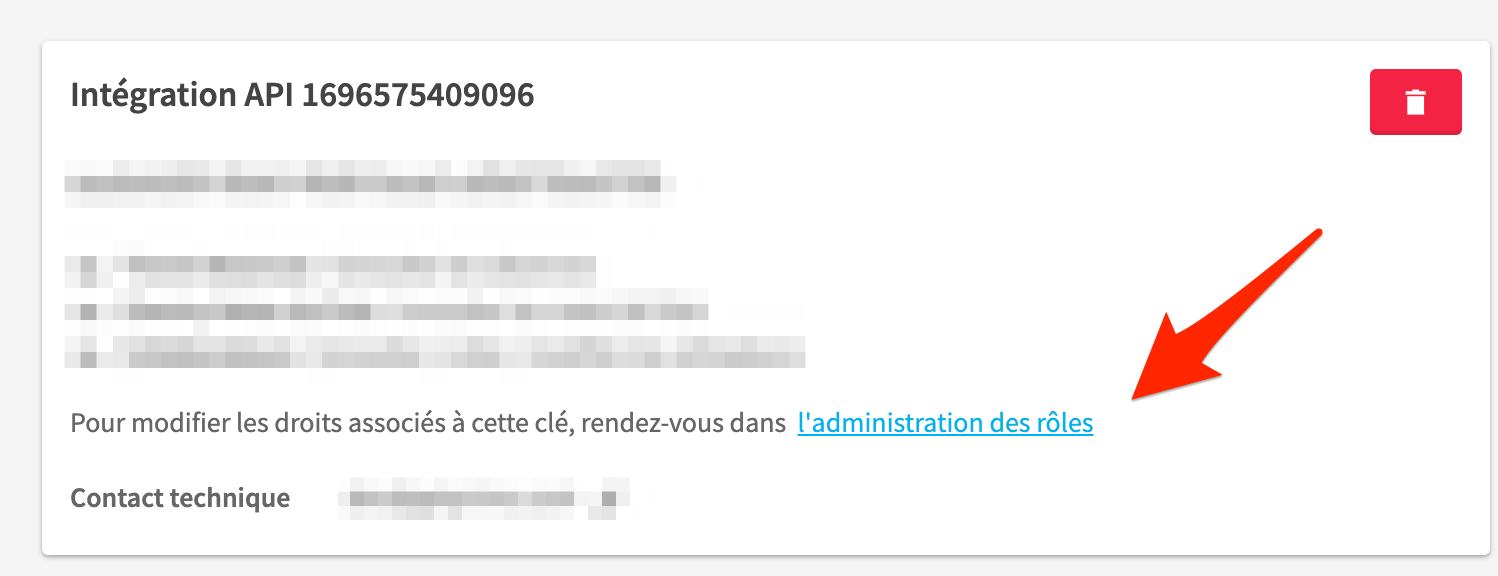
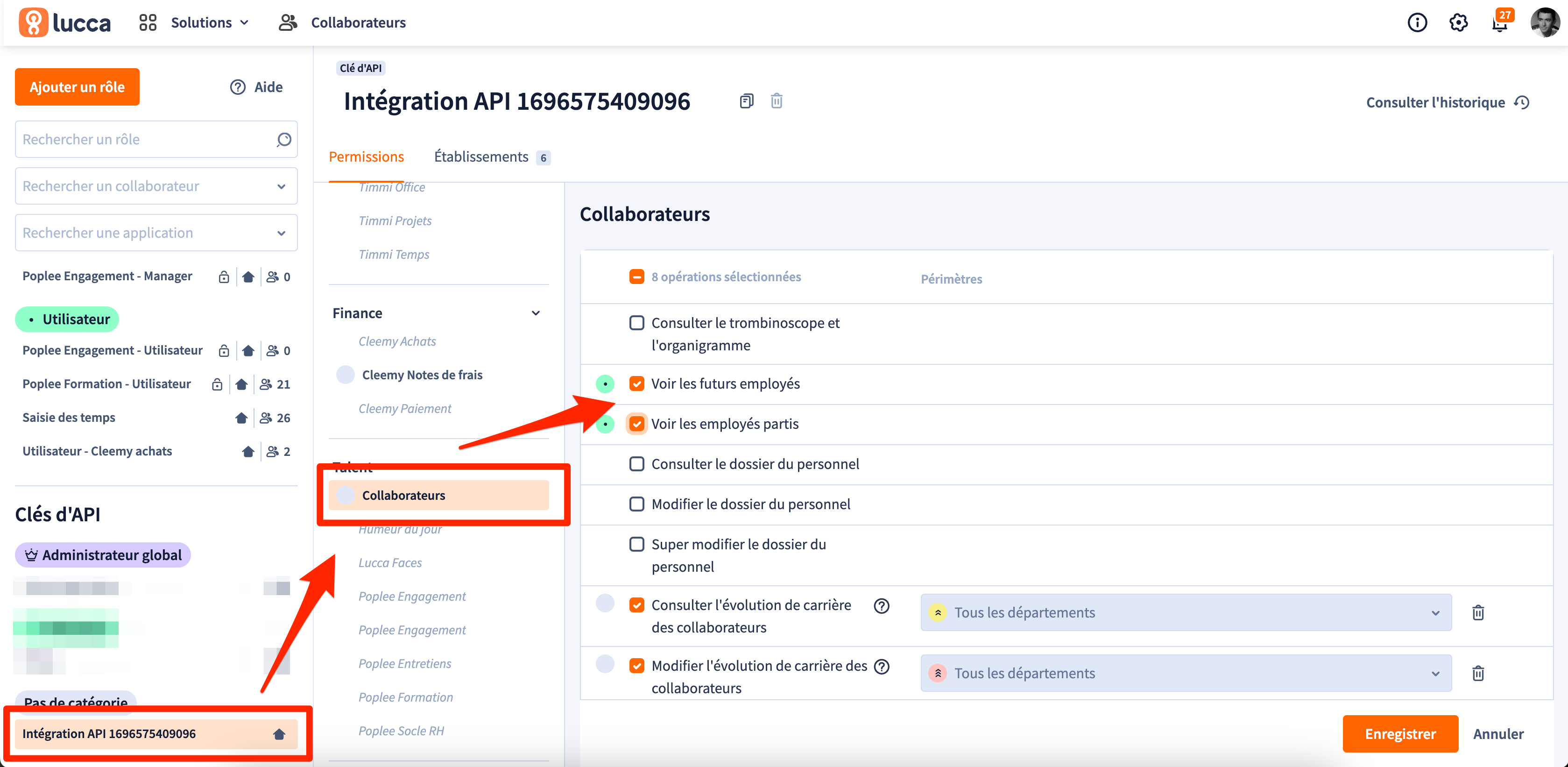
- Check "View future employees" and "View departed employees". These fields will allow you to bring down upcoming onboardings and offboardings in Factorial IT.
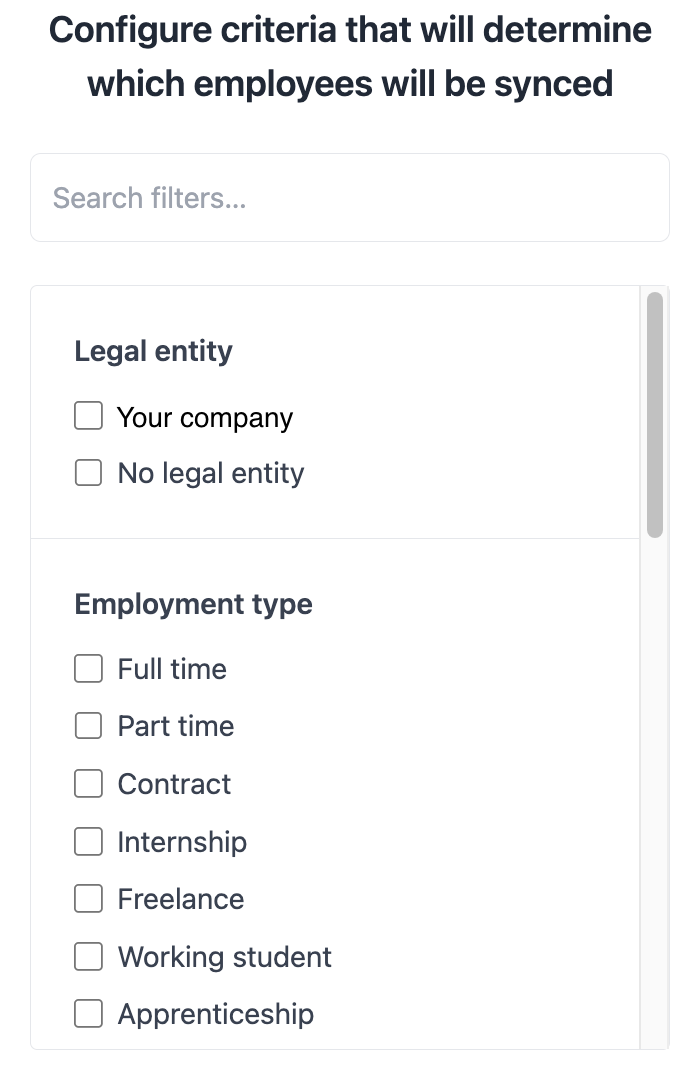
Choose which employees to sync
You can apply filters to only sync relevant employees to Factorial IT.
For example:
- Only sync certain legal entities
- Only include specific contract types (e.g. full-time, internship, freelance…)
- Only include specific Teams
These filters help you focus your device and access management on the right populations.
Updates and import of new data
Import of new data
Once the HRIS is connected with Factorial IT, automatic synchronization is performed every hour. No manual action is required to import new data.
Data updates
You can decide whether your HRIS data should be updated in Factorial IT when they are modified in your HRIS.
From the Sync settings page, you can choose the sync mode per field:
- Import once (imported only at first sync)
- Continuous synchronization (updated if fields are updated in the HRIS)
Note: fields like Offboarding date can be continuously updated, while other fields like Job title may be imported once and then managed in Factorial IT.
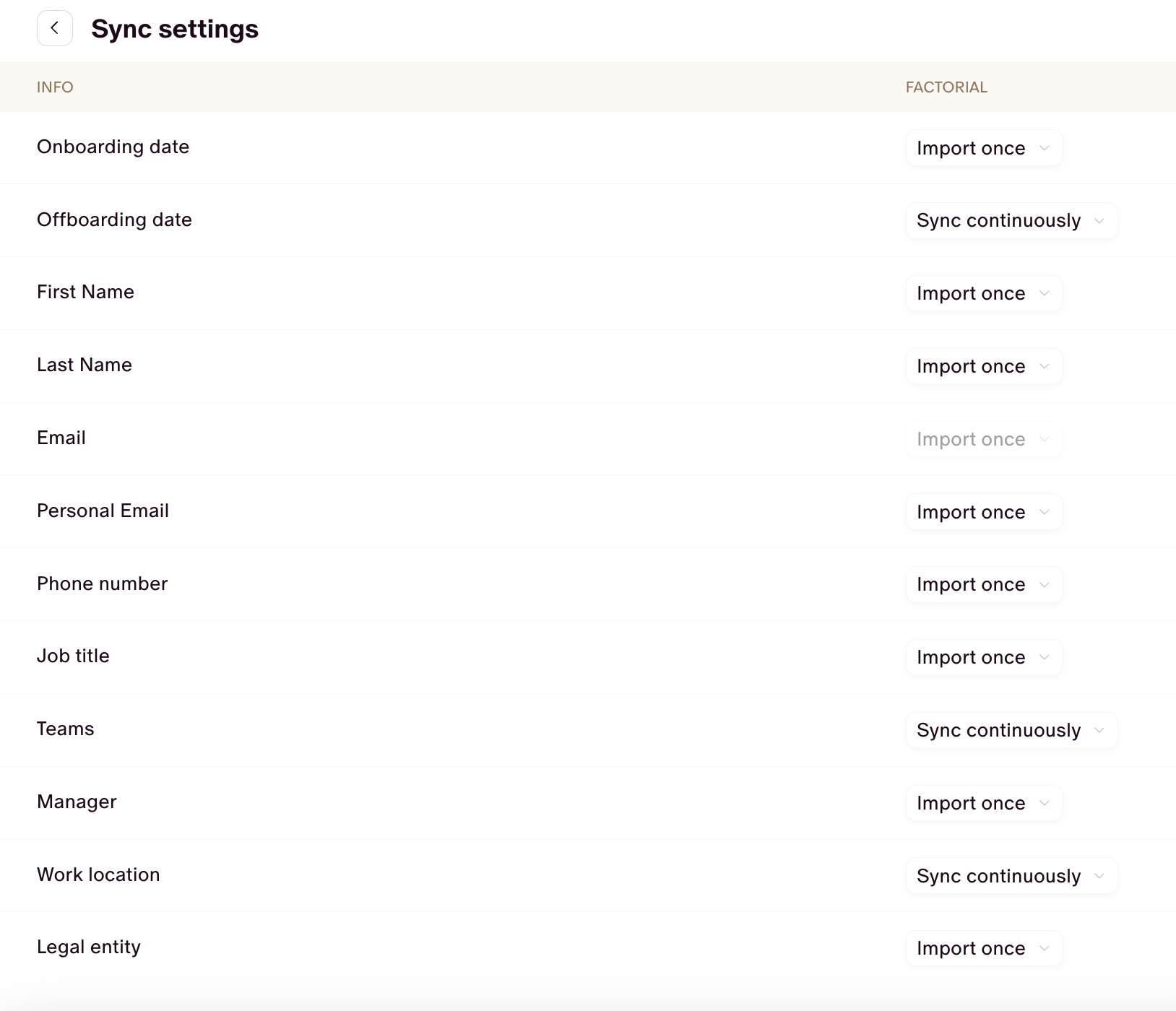
To resume
• During the first synchronization (post-setup): All fields coming from the HRIS will overwrite existing data in Factorial IT.
• When an employee is created via the HRIS: Their information is automatically fetched from the HRIS.
• During ongoing synchronization:
• Fields that remain in sync will be overwritten by HRIS data.
• Fields not synced are left unchanged.
Managing external employees
Your HRIS connection might import individuals who aren't part of your core teams (e.g. consultants, freelancers, accountants, or HRIS administrators). If you don't want to provide equipment to these people or include them in your Factorial IT employee management, you can remove them from your view. Simply click on the employee profile and select "Hide".
Data security and confidentiality
Summary of data retrieved by Factorial IT
The details of the information retrieved by Kombo at the time of connection with your HRIS are provided to you before you connect your HRIS. You have the option to select whether or not to read certain information.
| Data read by Factorial IT | Object to authorize in the HRIS | Why |
| First name, last name, email, phone | "employee" object | To create the employee, keep them informed of orders, and register them in the MDM |
| Postal address | "employee" object | To easily send equipment to the employee |
| Position, team, manager | "employee" or "team" object | To apply certain settings or authorizations by team |
| Start date and end date | "contract" object | To anticipate onboardings and offboardings |
Exhaustive list of data retrieved by Factorial IT from the HRIS
Legal Entities
- Name
- Address
Work Locations
- Name
- Address
Employees
- Employee number
- First name
- Last name
- Job title
- Work email
- Personal email (optional)
- Mobile phone number (optional)
- Employment status
- Work location ID
- Legal entity ID
- Manager ID
- Home address (optional)
- Start date
Employments
- Employee ID
- Employment type
- Effective date
Groups
- Name
- Type
If the information is not listed above, it is not read by Factorial IT. Kombo does not retrieve banking information, salary, leave, etc.
GDPR policy and data processing
For any information regarding Kombo's GDPR compliance, please refer to their Trust Center.