To accurately understand the time and resources spent on each project, you can view and export the data related to each of your projects. This can help make informed decisions about resource allocation, project timelines, and budgeting.
Project overview
The overview page includes data on project hours and provides various views related to assigned employees. You will be able to see both the total hours recorded and the total hours divided by employee.
- On your sidebar, navigate to Projects
- Choose the desired project
- Open the Overview tab

You can showcase the entire project's progress, including its overall evolution, or filter the progress based on different time frames.
Export projects data
- From the Project page, click on the three dots icon located in the right corner above the project table
- Select the option Export projects
- Choose the File name
- Choose the Export type:
- Project's total time tracked
- Project's total time tracked by date
- Projects and shifts by employee
- Project's total time by employee
- Project's expenses
- Project's tasks
- Select the File format
- CVS
- Excel
- Within Excel, select Hours with decimals or Hours and minutes
- Select the project
-
Choose the date range
- Current month
- Last month
- Last 90 days
- Custom range
- Choose wether to Include employees without time tracked or not
- Click on Submit

You will receive an email with the exported file. Additionally, you will find the exported file in the Documents > Internal section of your Factorial account.
Types of exports
-
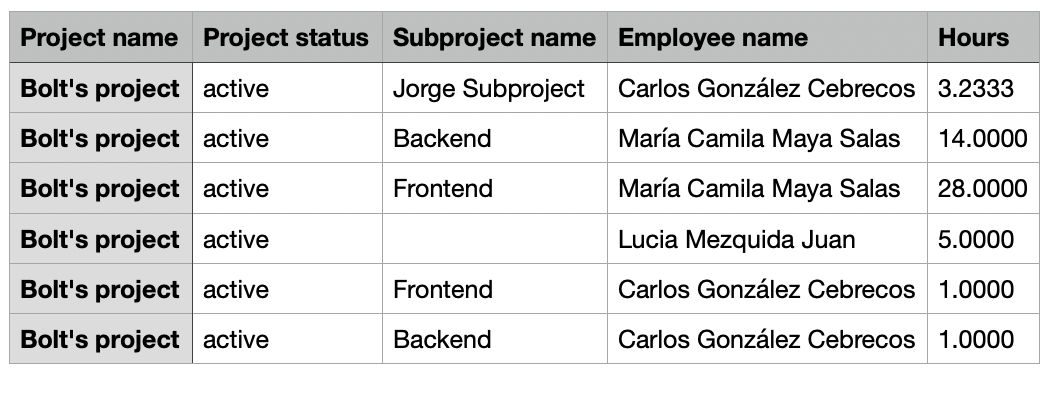
Project's total time tracked:
This option will display all the hours spent on the project or projects selected.
-
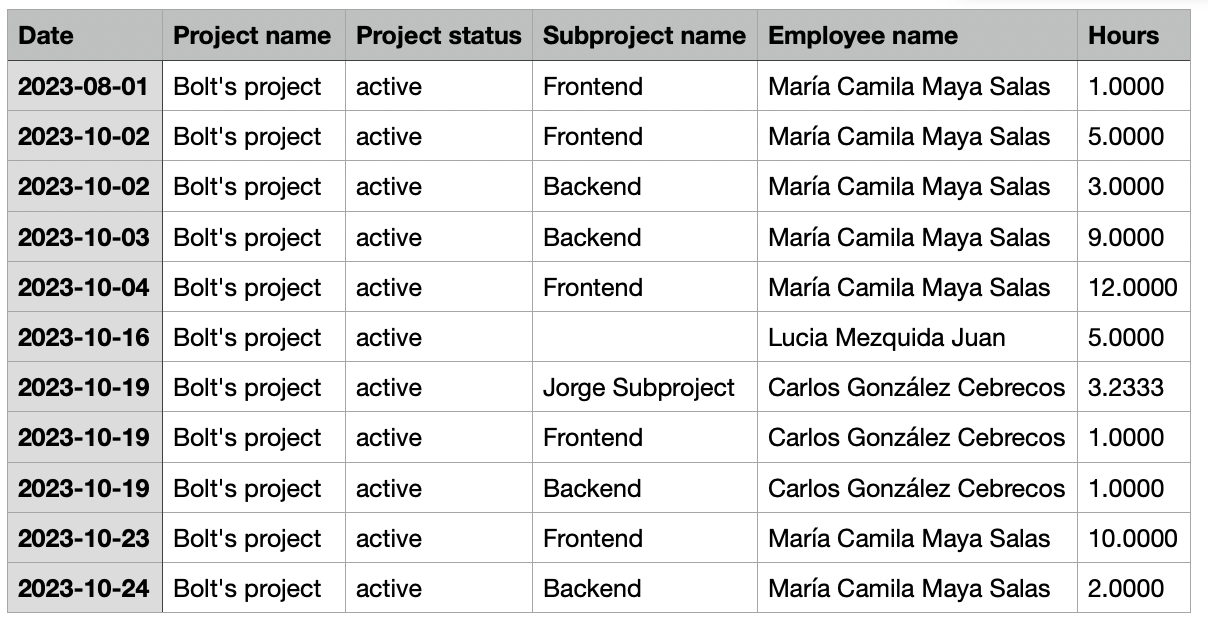
Project's total time tracked by date:
This export will show the information on the time allocated to each project grouped by day.
-
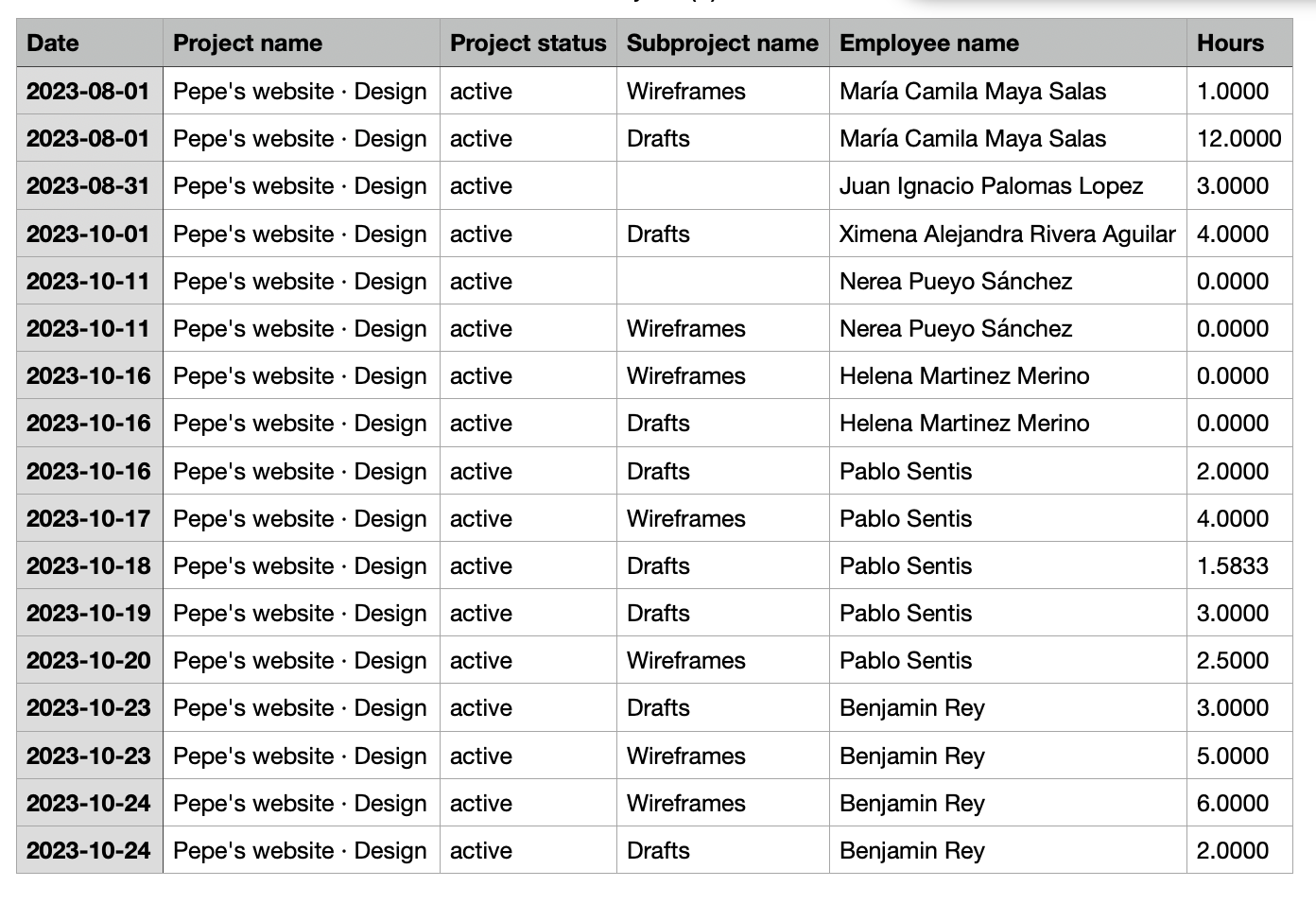
Projects and shifts by employee:
You can choose which employee/employees will be included in the export. That way, all the employees' clock-in / clock-out done in the selected date range will be included in the file. The total hours tracked per project will be divided based on the number of hours tracked by each employee.
-
Project's total time by employee:
This report shows the total hours each employee has worked on a specific project. In essence, it provides a clear overview of who worked on the project and for how long, helping managers make informed decisions about resource management and project planning.
-
Project's expenses:
With this export, you will be able to observe the incurred expenses, the status of these expenses, and a link to access the expense details. This enhancement enables you to access comprehensive information on expenses related to a specific project.
-
Project's tasks:
This report lists all the tasks associated with a project, typically including task names, assigned employees, deadlines, and status. It helps track progress, manage responsibilities, and ensure that all project activities are completed on time. Managers can use it to monitor workflow, identify bottlenecks, and coordinate team efforts efficiently.