Introduction
Apple Business Manager (ABM) is a web portal that allows administrators to deploy iPhone, iPad, iPod touch, Apple TV, and Mac devices from a single location.
Connecting an Apple Business Manager (ABM) to a Mobile Device Management (MDM) system allows for pre-configuration of computers at the time of order (installation of company applications, disk encryption, password security policy, etc.). This is called Zero Touch Deployment.
Requirements
If you don't have an ABM account, you can find the details of the steps necessary for its creation here: Apple - Enroll in Apple Business Manager.
Create an ABM account for your company (estimated time: 2 minutes)
- Go to https://business.apple.com/
- Select "Sign up now"
- Enter and verify the following information about the organization:
- The first and last name of the person registering on behalf of the organization
- A business email address that is not associated with an App Store or iCloud account and has not been used as an Apple ID for another Apple website or service
- Your organization's name
- The website URL (optional but recommended)
- Create and confirm a new password for your new account, then select a country code and enter your phone number. A unique verification code is first sent to your email address, then another code is sent to your phone number
- Follow the remaining steps, then select Start to begin using Apple Business Manager
Validate your registration (estimated time: 5 minutes)
You will need to validate your account together. You can find the details of the steps necessary for its validation here: Apple - Enroll in Apple Business Manager.
- Go to https://business.apple.com/
- Log in with your administrator account, then go to your organization settings
- Select Validate, then enter your organization's D-U-N-S (Data Universal Numbering System) number (more information here: D-U-N-S® Number)
- Enter the validation contact details (name, email address, and role/job title) that Apple can use to validate your organization
- In your inbox, look for an email from Apple Business Manager with the subject "Your enrollment is being validated"
- Your registration will only be approved after verification of your data and that of the organization. During the validation process, the person designated as the validation contact will be contacted by phone to confirm this information. Make sure your messaging system allows emails from apple.com domains.
Finally, you need to validate this access with AppleCare at 0805 540 758. This verification takes less than 5 minutes.
Experience when a new employee arrives with a workstation configured with ABM
- Turning on the device
- Selecting country and language, configuring keyboard language
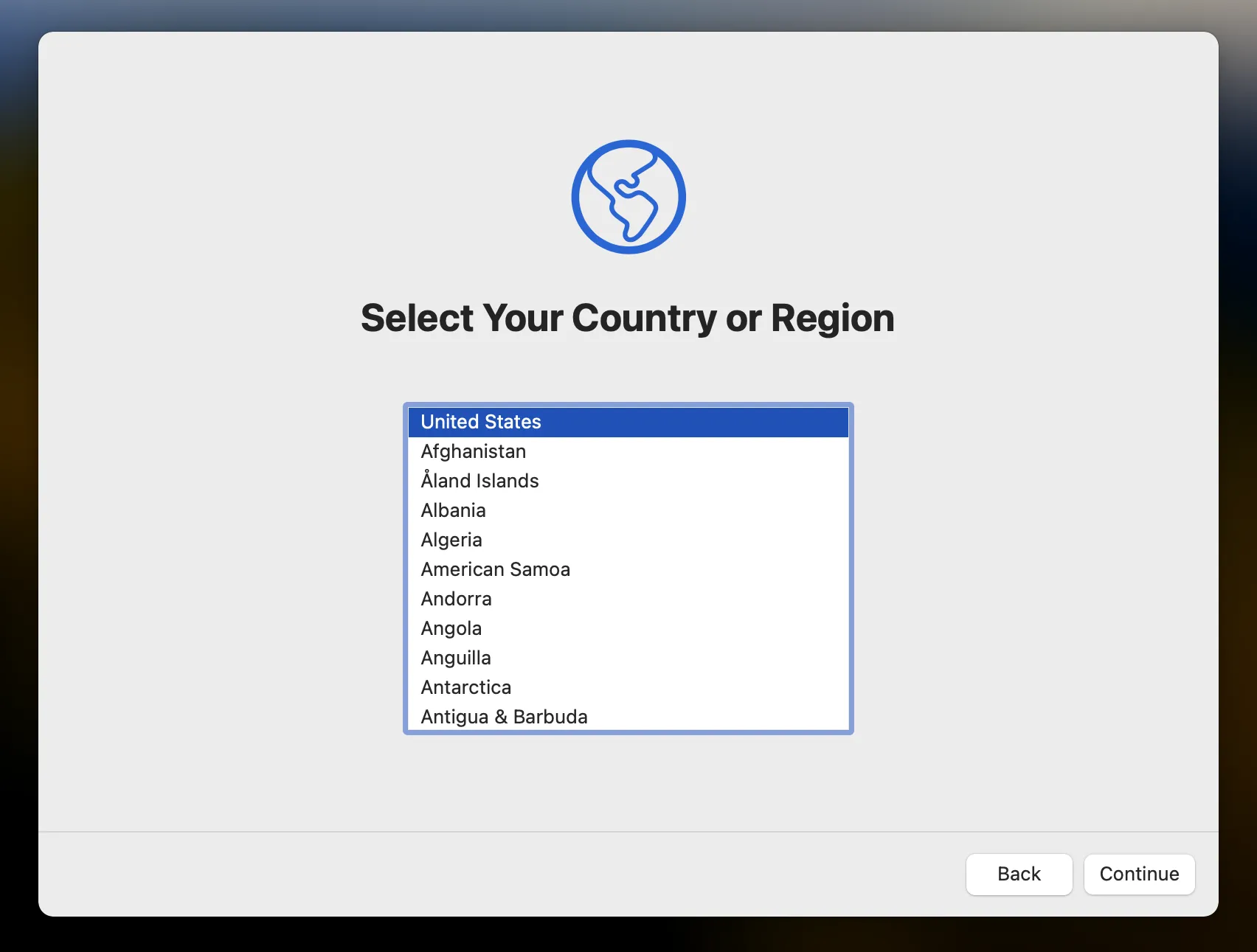
- Connecting to the Internet (WIFI password if necessary)
- Display of the Factorial IT Remote Management page
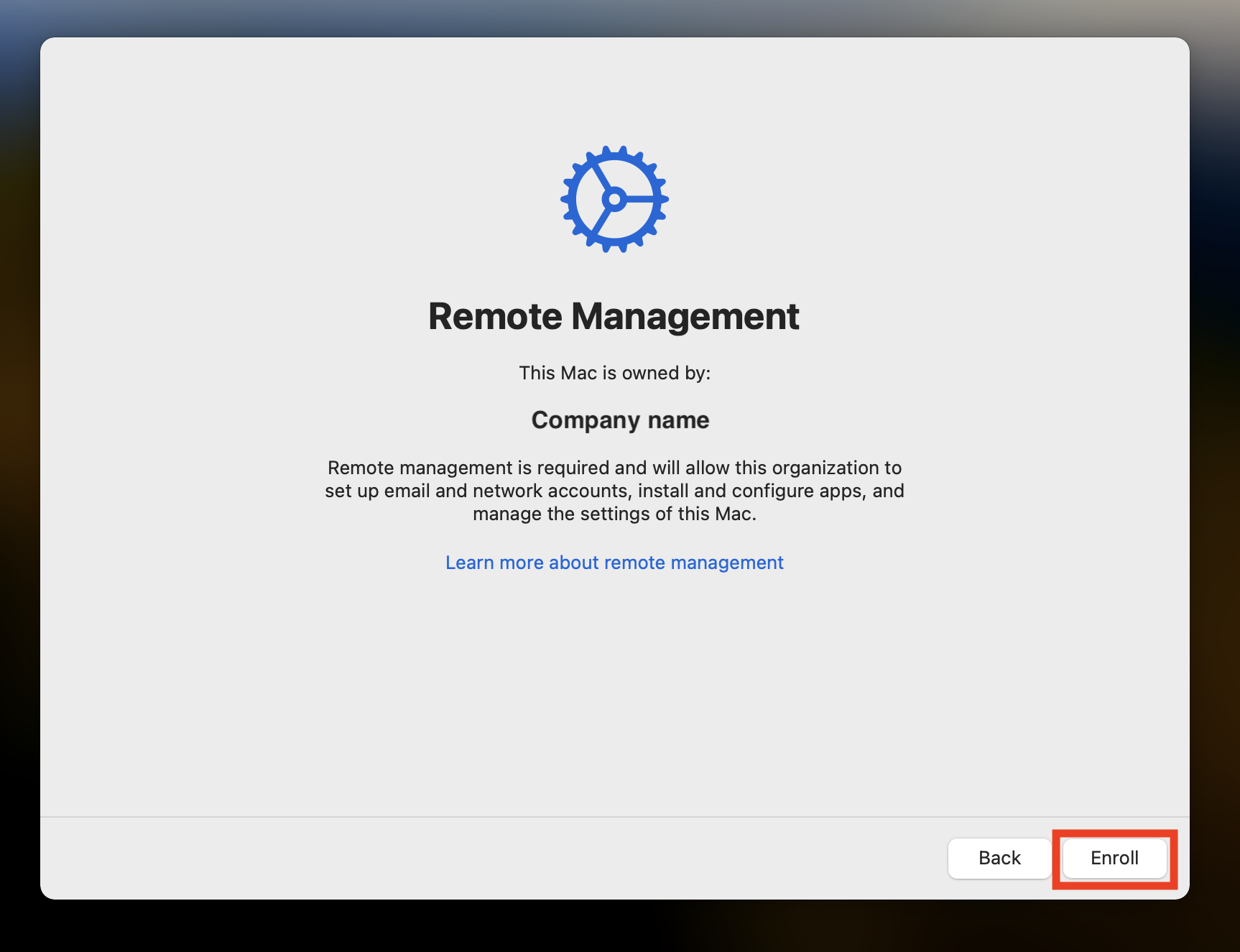
- User connects to Factorial IT using their email address (the employee must have been onboarded in Factorial IT)
- The workstation is ready to use, settings and applications defined in the Factorial IT Cockpit are applied
How your Apple Business Manager with Factorial IT
Go to your "Integrations" section to integrate your Apple Business Manager with Factorial IT and thus enable Zero Touch.