Your information is safe
Read Factorial’s terms of use to learn about security and how safely we treat your personal data.
How to add your personal data
- On your sidebar, head to Profile
- Select Personal details
- Fill in the fields:
- General information
- Identification documents
- Address
- Emergency contact
- Bank information
- Payroll information
- Every time you fill a field, click on Submit

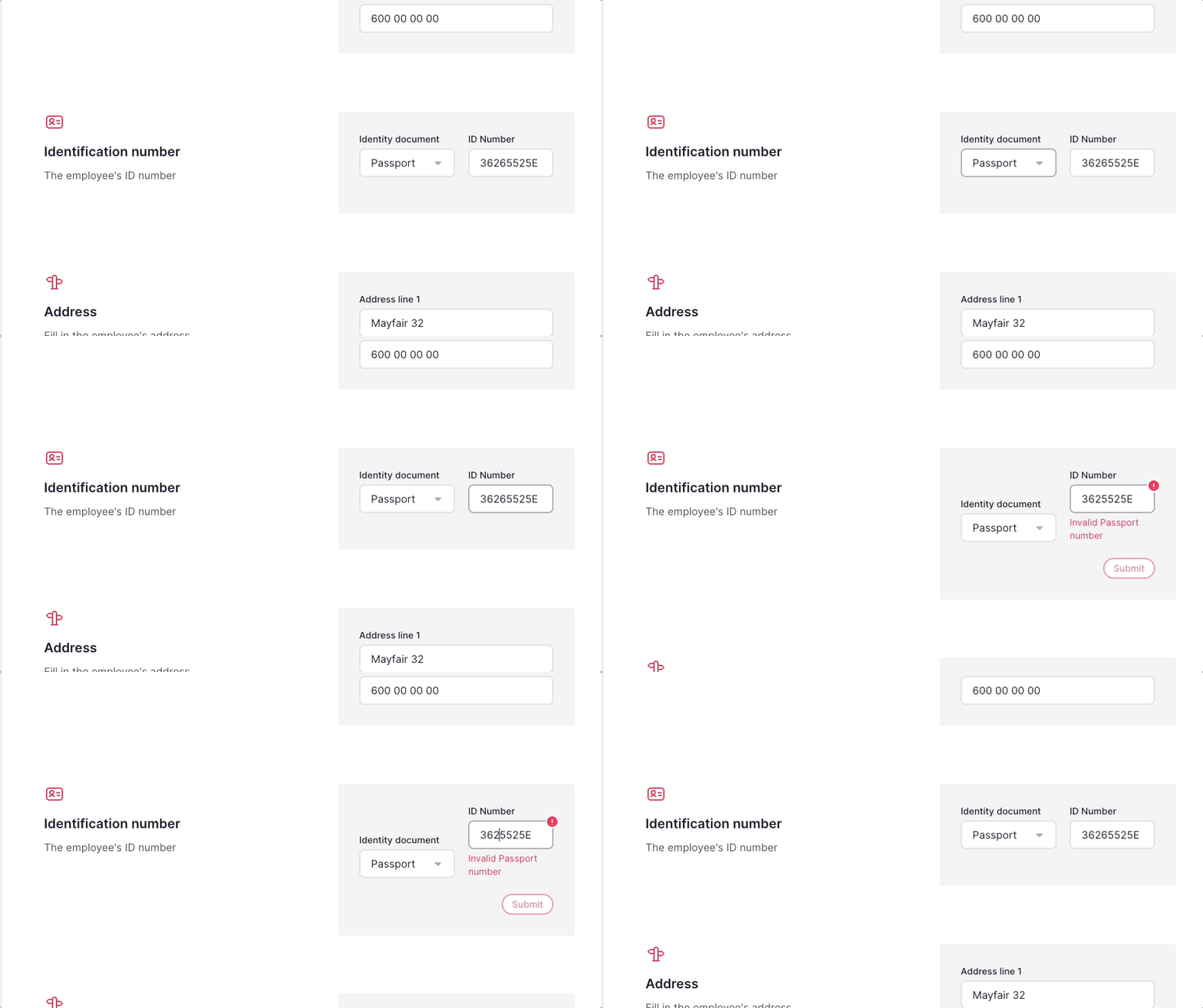
ID numbers and validation
The ID type dropdown and ID number format validation are two different things.
- The ID type dropdown appears when ID types are defined for the legal entity's country: Spain, France, Portugal, Italy, Germany, UK, US, Argentina, and Brazil.
- Automatic ID number format validation is available for Spain, France, Italy, Germany, and Portugal.
- Passport numbers are never format-validated, in any country, because the format is too generic.
- For UK, US, Argentina, and Brazil, the ID type dropdown is available, but the ID number format is not automatically validated.
- For a UK legal entity, the three valid ID types are National Insurance number, driving licence, and passport.
- In Spain, DNI and NIE numbers are format-validated, but passport numbers are not.
How to edit your Work details
- On your sidebar, go to Profile
- Access the Work details tab
- You can edit the following fields:
- Basic info > Personal email
- Custom fields
- Face recognition settings > Uploading picture
- Every time you fill a field, click on Submit
-
The rest of the fields can only be edited by a manager, admin or HR team with the corresponding permissions, according to what they want to edit:
- Edit employees in bulk
- Edit personal info
- See personal info
- See employee's company identifier
- Edit employee's company identifier
- Edit employee's manager
- See employee's seniority date
- Edit employee's seniority date
- See cost centre assignments
- Manage cost centre assignments

How to upload your profile picture
- On your sidebar, head to Profile
- Select Work details
- In Work information, click on the picture
- Click on Upload photo
- Choose the photo you want to upload
- Click on Submit
Learn more on uploading your profile photo here

Limit your image size to a maximum of 5MB (no size specification). Exceeding this capacity can cause problems during the login process.